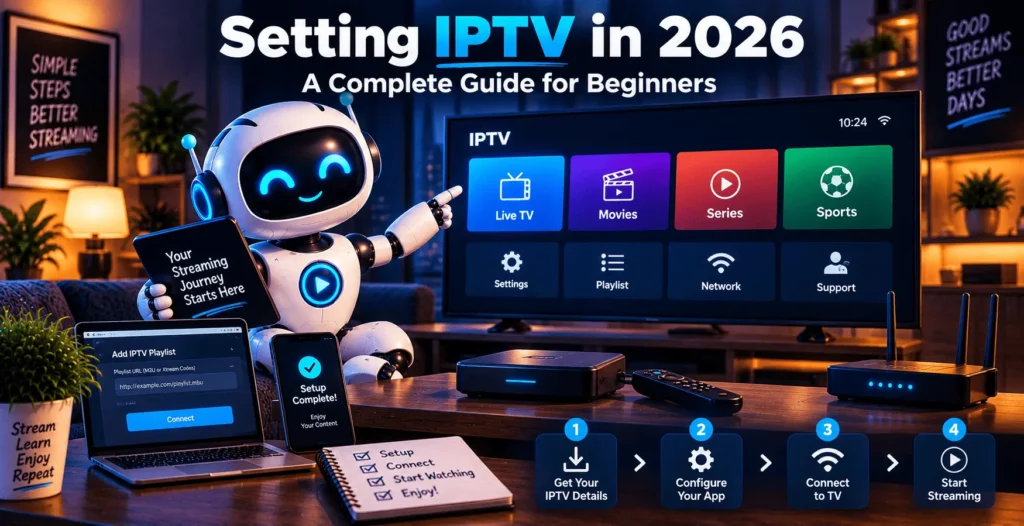
Setting IPTV in 2026: A Complete Guide for Beginners

Setting IPTV up isn’t really one action. It’s a handful of smaller pieces that have to line up correctly: a legitimate service, the right app, a device that supports it, and login details entered without a typo. IPTV itself just means television delivered over an internet connection instead of a cable line or satellite dish, and setting IPTV up is really the process of connecting a compatible app to that internet-delivered content on whatever screen you’re using. This guide covers how to set up IPTV correctly: what you need before you start, how a service differs from the app you watch it on, what M3U and Xtream Codes actually mean, how the process shifts across different devices, and how to use IPTV day-to-day once the settings are dialed in.
| Attribute | Details |
|---|---|
| Topic | Setting IPTV |
| Level | Beginner |
| Devices Covered | Firestick / Fire TV, Android TV, Smart TVs, iPhone / Android, Windows / Mac, MAG / Enigma2 |
| What You Need | A legitimate IPTV service, a compatible app or player, and the correct login or playlist details |
In This Guide
What you need before setting IPTV
Five things typically have to be in place before setting IPTV actually works, and skipping any one of them is usually what causes the “it’s not working” messages people post in forums.
You need a legitimate service or source, meaning a provider that’s transparent about what it carries and where its content rights come from. You need a compatible app or player installed on whatever device you’re using, since IPTV doesn’t run natively the way a built-in TV tuner does. You need a device that actually supports IPTV playback, whether that’s a streaming stick, a smart TV, a phone, or a computer. You need a stable internet connection, because IPTV streams video in real time rather than pulling from a broadcast signal. And you need the correct login credentials or playlist information from your provider, whether that’s an M3U link or an Xtream Codes username, password, and server address.
Miss the first one and nothing else matters much. A polished app and a fast connection don’t fix a service that doesn’t actually hold the rights to what it’s distributing.
IPTV service vs. IPTV player: know the difference
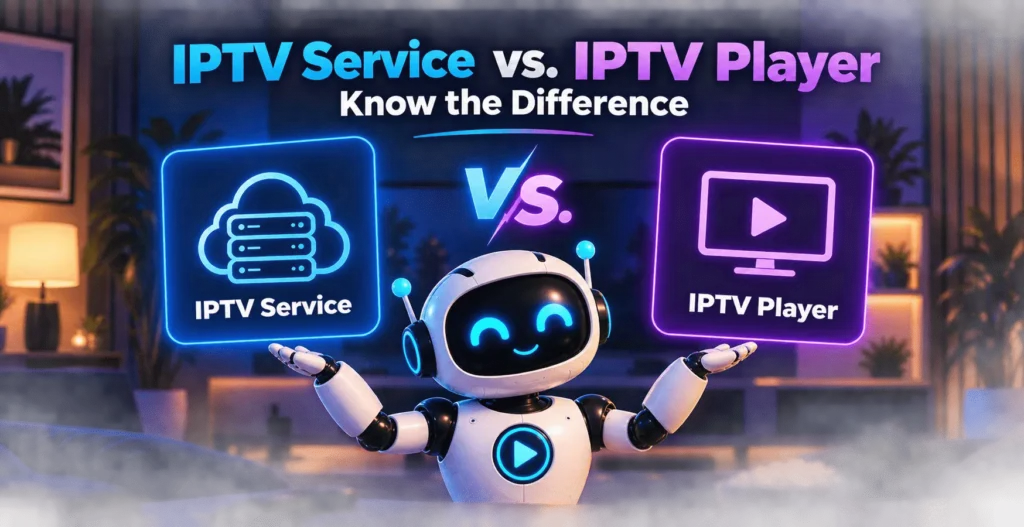
A lot of setup confusion traces back to mixing up two things that aren’t the same. The IPTV service is the provider: the company supplying the channel lineup, the on-demand library, and your subscription credentials. The IPTV player, sometimes called an app, is the software you use to actually watch that content on your device.
Neither one works without the other. A player like VLC, IPTV Smarters, or TiviMate doesn’t come with any channels built in; you point it at a service using a playlist link or login details, and it displays whatever that service sends it. Installing an app is not the same as having something to watch through it, and when you’re setting IPTV up, providers that offer their own current subscription options, like Robotiptv.com, are usually the starting point people are missing when the app itself opens to an empty screen.
VLC is worth knowing about specifically here, since it handles most common IPTV formats without much setup and works as a decent way to confirm whether a playlist link is actually valid before troubleshooting anything more complicated.
Understanding M3U and Xtream Codes
These two terms come up constantly while setting IPTV up, and neither one is a type of IPTV content. They’re access formats, the technical method a service uses to hand you its channel list.
An M3U playlist is a plain text file listing stream URLs, one per channel or piece of content. You load that file, or its URL, into a compatible player, and the app builds a channel list from it. It’s simple and widely supported, which is why it’s still common.
Xtream Codes works differently. Instead of a static file, it’s login-based: you enter a username, password, and server address, and the player pulls the current channel list, on-demand catalog, and program guide directly from the provider’s server. That tends to stay more current than a static M3U file, since the provider updates its own server rather than requiring you to download a new playlist every time something changes.
Neither format says anything about what you’re allowed to do with it; they’re neutral tools, and how a provider uses them is a separate question from the format itself. If you want the fuller picture of how these formats relate to the different kinds of IPTV content a service might offer, our guide on types of IPTV covers that distinction in more detail.
Setting IPTV up across different devices
How do you set up IPTV on a specific device? The core process, service, app, credentials, stays the same everywhere; what changes is the specific steps for each one.
On a Firestick or Fire TV, most players install directly from the Amazon app store, or through sideloading if the one you want isn’t listed there. Either way, the IPTV installation itself usually takes a couple of minutes. Android TV boxes work similarly, with the platform allowing a wider range of apps than most other devices. Smart TVs vary by brand: some support IPTV apps natively through a built-in app store, while others need casting from a phone or a separate streaming device plugged in over HDMI. On iPhone and Android, setup usually means installing a dedicated app from the relevant app store and entering the same login or playlist details you’d use anywhere else. Windows and Mac computers can run IPTV through a desktop player, which tends to be the easiest environment for setting IPTV up since you have direct access to logs and settings a TV interface usually hides. And on MAG boxes or Enigma2 devices, setup typically happens through the box’s built-in portal settings rather than a downloadable app, which is a different process from most other devices on this list.
Rather than walking through every click for each of these here, the process is worth seeing in full for whichever device you’re on. For detailed step-by-step instructions, see our How to Install IPTV — Setup Guide, which breaks down the exact screens and prompts for each device.
IPTV settings worth knowing
Once you’re done setting IPTV up, a handful of settings inside the app itself are worth checking rather than leaving on default.
The EPG, or electronic program guide, is what shows you what’s airing and when. Some apps pull this automatically from your provider; others need the EPG URL entered separately, and it’s worth confirming this is populated before assuming your service doesn’t include a guide. Video quality settings let you choose between resolutions like SD, HD, and 4K where it’s offered, and setting this manually can help if the app’s automatic quality detection is guessing wrong for your connection. Playlist refresh settings control how often the app re-checks the provider’s server for updates; too infrequent and new channels take a while to show up, too frequent and it can slow the app down unnecessarily. Subtitle and audio track settings matter for anyone watching content in a language other than the default, and they’re often buried a layer deeper in the menu than people expect. Network settings, including buffer size and connection type, are worth adjusting if you’re seeing regular interruptions, since a slightly larger buffer trades a bit of extra loading time for fewer mid-stream drops.
None of these settings fix a bad service. What they do is get the most out of a good one.
Common problems when setting IPTV up
A few issues account for most of the frustration people run into when setting IPTV up.
Playlist not loading usually comes down to a typo in the URL, a missing “http://” at the start, or a subscription that’s expired without an obvious error message saying so. Login errors are often the same root cause under a different symptom: double-check the server address, username, and password character by character before assuming something’s broken. Missing channels can mean the provider’s lineup genuinely doesn’t include what you’re looking for, or that the playlist hasn’t refreshed since a recent change on their end. Buffering during playback is almost always a bandwidth or network stability issue rather than something wrong with the app itself; a wired connection tends to outperform Wi-Fi here, especially if your router isn’t close to the device. EPG not appearing usually means the guide URL wasn’t entered, or wasn’t entered correctly, during setup. And app or device incompatibility shows up when a player simply wasn’t built for the device you’re trying to run it on, which is worth checking before you spend time troubleshooting something that was never going to work in the first place.
IPTV setup: pros and cons
Pros
- Works across most devices without extra hardware.
- Doesn’t require a cable installation, no technician appointment needed.
- Once it’s set up correctly, switching between services or formats doesn’t mean buying new equipment.
- Tends to be quicker to get going than a traditional cable install appointment.
Cons
- The setup process has more small steps than just turning on a cable box, and a single wrong character in a login field can look like a bigger problem than it is.
- Stream quality depends entirely on your internet connection, so a weak line shows up immediately once you’re watching.
- Legitimacy varies a lot by provider, so it’s on you to check who you’re actually subscribing to before handing over payment details.
Is IPTV legal to set up?
IPTV as a technology is not illegal. It’s the same basic delivery method used by mainstream services like YouTube TV or Hulu + Live TV, both of which are IPTV in the technical sense. What determines legality is whether the specific service you’re setting up actually holds the rights to distribute the content it’s offering, not the act of setting IPTV up itself.
That also applies to the formats mentioned earlier in this guide. M3U and Xtream Codes are neutral technical methods for delivering a channel list, not indicators of legality on their own. A legitimate, licensed service can use either format, and so can one that isn’t licensed properly; the format tells you nothing about what’s on the other end of it. A provider that’s transparent about its licensing is generally on solid footing. One that’s vague about where its channels come from, or that offers premium content at a price that doesn’t add up, is worth approaching with real skepticism before you go through the trouble of setting IPTV up in the first place.
Once you are set up, our guide to a trusted IPTV provider and the answers on whether IPTV is legal help you judge the service you chose.
Frequently asked questions
How do I set up IPTV?
Setting IPTV up starts with a legitimate service: install a compatible app on your device, then enter the login or playlist details the provider gives you, whether that’s an M3U link or an Xtream Codes username, password, and server address. The exact screens vary by device, which is why a dedicated IPTV setup guide is worth following the first time through.
What do I need to set up IPTV?
You need a legitimate service, a compatible app or player, a supported device, a stable internet connection, and the correct login or playlist information from your provider. Missing any one of these is usually why a setup doesn’t work.
How do you use IPTV once it’s set up?
Open your IPTV app, browse or search the channel guide for live content, or the library for on-demand titles, and select what you want to watch. Settings like video quality, subtitles, and the EPG are usually adjustable from within the app’s menu.
Do I need special software to set up IPTV?
Yes. IPTV requires a compatible app or player on your device, since channels don’t display without something to decode the stream your provider sends. The app itself doesn’t come with content built in; it needs to be connected to a service.
Is IPTV legal to set up and use?
IPTV technology itself is legal. Whether setting IPTV up with a particular service is legal depends on whether that service holds proper rights to distribute the content it offers, which varies from provider to provider.
Wrapping up
Setting IPTV up comes down to the same handful of pieces regardless of what device you’re using: a legitimate service, a compatible app, correct login or playlist details, and a connection steady enough to carry the stream. M3U and Xtream Codes are just the plumbing that connects an app to a service, not a measure of whether either one is trustworthy. Once you’ve got the service and app sorted, the device-specific steps and the settings menu are mostly a matter of patience rather than technical skill, and most of the problems that come up during setup trace back to one of the same small handful of causes.