How to Watch IPTV on Roku TV: Complete Setup Guide

Roku doesn’t build IPTV support into its interface the way it does for Netflix or Hulu, but getting IPTV on Roku TV working is still very doable. There are three real ways to do it: install a player straight from the Roku Channel Store, mirror an app from your phone or laptop, or plug in a second streaming device for full access. Which one makes sense depends on how much control you want and how much hassle you’re willing to put up with.
This guide walks through all three, in the order most people should actually try them.
Quick answer: Search the Roku Channel Store for IPTV Smarters Plus, add it like any other app, and log in with the Xtream Codes or M3U details from your provider. No sideloading needed. If that app doesn’t cover what you want, screen mirroring from a phone or laptop, or plugging a Fire TV Stick into the TV’s HDMI port, both work too.
| Attribute | Details |
|---|---|
| Topic | How to Watch IPTV on Roku TV |
| Level | Beginner — no technical knowledge needed |
| Devices Covered | Firestick Lite, 3rd gen, 4K, 4K Max, Fire TV Cube |
| What You Need | A Fire TV Stick, a stable internet connection, and an IPTV player |
In This Guide
Can you get IPTV on Roku TV?
Yes. IPTV on Roku TV works, with a catch. Roku is a closed platform. Unlike Android TV or Amazon Fire TV, it won’t let you sideload an APK file from outside its own store, so apps like TiviMate or the full version of IPTV Smarters Pro aren’t an option out of the box. That’s the source of a lot of outdated advice floating around claiming IPTV simply doesn’t work on Roku.
It does, though. A handful of IPTV player apps have actually made it onto the official Roku Channel Store. IPTV Smarters Plus is the main one, and they work with any service that gives you Xtream Codes or an M3U playlist link. On top of that, screen mirroring and an add-on HDMI device both sidestep the Channel Store restriction entirely if you want more flexibility.
Roku streaming device vs Roku TV: does it change anything?
“Roku” refers to two different things, and it trips people up. There’s the Roku streaming stick or box, a small dongle you plug into any TV’s HDMI port. And there’s a Roku TV, a television with Roku’s operating system built in already, made by brands like TCL, Hisense, and Sharp. Both run the exact same software and the same Channel Store, so nothing in this guide changes depending on which one you own.
The one practical difference: if you already own a Roku TV, it usually has two or three spare HDMI ports free for other devices, since the smart TV functions don’t use them up. That matters for Method 3 below, where the plan is to add a second streaming device alongside Roku rather than replace it.
Method 1: Install an IPTV player from the Roku Channel Store
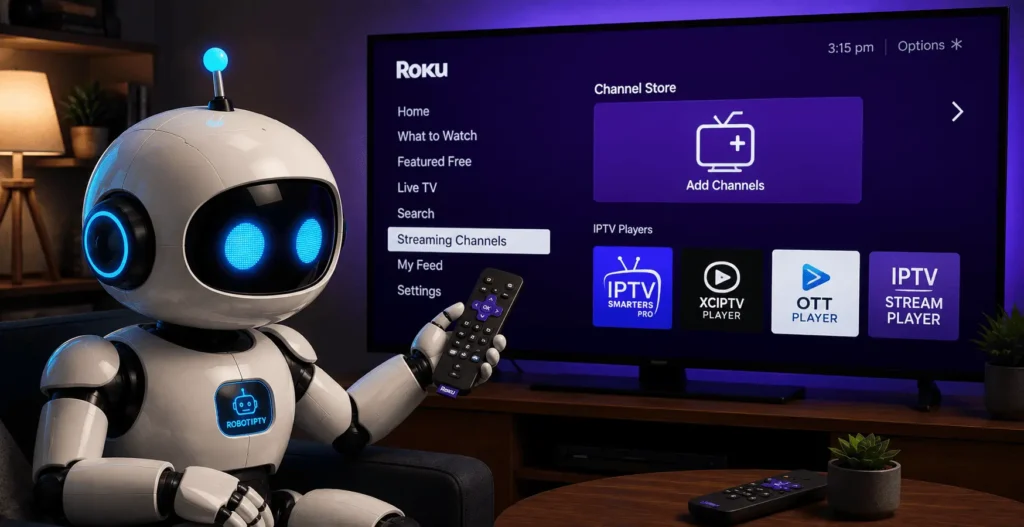
This is the simplest route to IPTV on Roku TV for most people, and it’s the one to try first.
- On your Roku home screen, go to the search icon and type IPTV Smarters Plus.
- Select it from the results and choose Add Channel. It installs like any other app. No sideloading, no developer mode.
- Open the app once it’s installed. You’ll be asked to log in.
- Choose Login with Xtream Codes API and enter the server URL, username, and password your provider gave you. Some providers instead give you an M3U URL, which the app also accepts under a separate login option.
- Give it a minute to load your channel and VOD lists, then you’re watching.
That’s really it. The interface is basic compared to what you’d get on a Fire TV Stick with TiviMate, but it covers live channels, catch-up, and video on demand, and it runs natively on the TV, with no phone required and no mirroring lag.
If you don’t have login credentials yet, our guide on how to install IPTV covers what a provider actually hands you and how to read an Xtream Codes login versus an M3U link, which is worth knowing before you type anything into the app.
Method 2: Screen mirror an IPTV app to your Roku TV
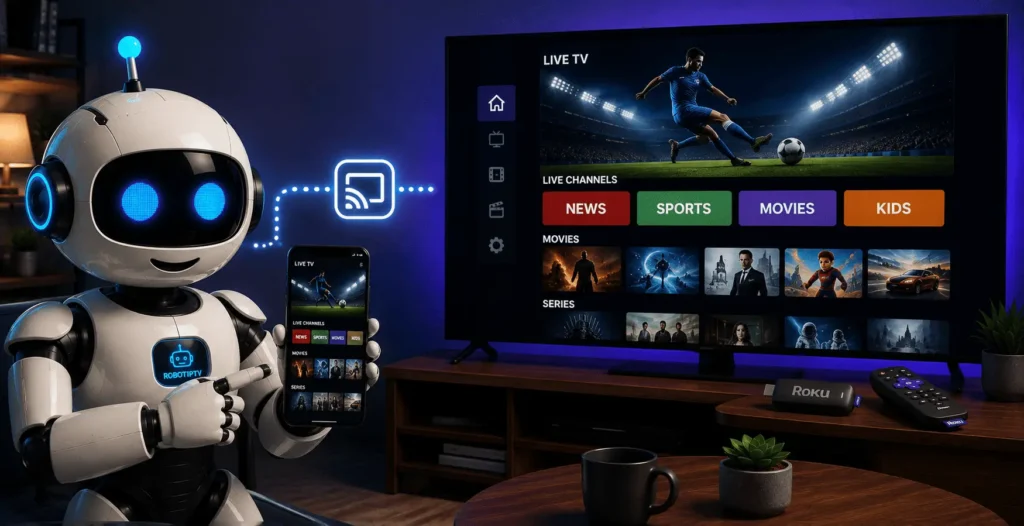
Screen mirroring is the fallback for IPTV on Roku TV when the app you want to use isn’t in the Channel Store, or when you already have IPTV Smarters Pro or TiviMate set up on your phone and don’t feel like starting over. It’s also the most common answer people find when searching how to live stream to TV from a phone that isn’t natively supported by their smart TV.
From Android:
- Make sure your phone and Roku are on the same Wi-Fi network.
- Pull down the notification shade and tap Smart View (some phones call it Wireless Display or Cast).
- Select your Roku from the list of available devices.
- On the TV, accept the connection prompt. You’ll see options for Allow, Block, Always Allow, or Always Block.
- Open your IPTV app on the phone. Whatever’s on your screen now shows on the TV.
From Windows 10 or 11:
- Windows 10: open Action Center and click Connect. Windows 11: press Win + K for Quick Settings, then Connect to a wireless display.
- Pick your Roku device and approve the connection on the TV.
- Open your IPTV player and it streams straight to the screen.
From iPhone or iPad (AirPlay):
- Confirm both devices are on the same network.
- Open Control Center and tap Screen Mirroring.
- Select the Roku.
- Launch your IPTV app.
The obvious downside: your phone or laptop is tied up the entire time you’re watching, and mirroring adds a bit of lag since the video is being decoded on one device and re-streamed to another over Wi-Fi. A weak signal shows up fast as buffering or a blurry picture, so this method leans heavily on how good your home network actually is.
Method 3: Add a streaming device for full IPTV access on Roku TV
If you want more flexibility with IPTV players, the simplest option is to use a separate streaming device. Roku has HDMI ports, so you can connect a Fire TV Stick, Nvidia Shield, or another Android TV device and switch to it whenever you want to use a different IPTV player.
This also gives you access to a wider range of compatible apps. If you’re not sure which player to use, our guide to the best IPTV apps for Firestick compares six options and explains what each one is suited for.
For regular IPTV use, adding a separate streaming device can be a much easier solution than trying to work around Roku’s app limitations.
Which method should you actually use?
There’s no single right answer for IPTV on Roku TV. It depends on what you already have and how much you care about picture quality versus convenience.
| Method | Best for | Trade-off |
|---|---|---|
| Channel Store app | Most users, first attempt | Basic interface, fewer features than Android IPTV apps |
| Screen mirroring | Testing a service, using an app not on Roku | Ties up your phone, more lag, weaker with poor Wi-Fi |
| Add-on HDMI device | Daily viewers who want full control | Extra cost, extra remote to manage |
If you’re just checking whether a subscription works before committing to it, mirroring is the fastest way to test it. If IPTV is going to be your main way of watching live TV, either the Channel Store app or a dedicated streaming stick is worth the slightly higher effort up front.
One honest limitation worth flagging: whichever method you pick, a legitimate, licensed IPTV service depends on your provider actually holding the rights to the content it distributes. Roku itself doesn’t verify that for third-party channels, and neither does mirroring. That responsibility sits with whichever provider you choose to subscribe to, so it’s worth checking a service’s standing before signing up for a long-term plan.
What you need before you start
None of the three methods above will get IPTV on Roku TV working well without a couple of basics in place first:
A stable internet connection is the big one. IPTV streams video in real time over the internet rather than through a cable box, so your connection quality directly determines picture quality. Run a quick check at Speedtest.net. Aim for at least 25 Mbps if you’re watching in HD, more if multiple people in the house are streaming at once or you want reliable 4K.
You’ll also need an active IPTV subscription with either Xtream Codes login details or an M3U playlist URL. Without one, there’s nothing for the app to connect to. The player itself is just an empty shell until you feed it a working service.
Choosing the best IPTV service for Roku
If you’re choosing an IPTV service for Roku TV, compatibility is one of the first things to check. Roku has a more limited app environment than Android-based streaming devices, so a service that supports the login method required by your chosen setup gives you more options.
Stream stability matters as well. Buffering can come from several places, including your internet connection, the streaming device, or the service itself. Look for clear information about supported devices, connection limits, trial or refund terms, and customer support before committing to a plan.
It’s also worth checking how the subscription works across devices. If you plan to watch on Roku as well as a phone, computer, or another streaming device, make sure the plan you choose allows the number of connections you actually need.
The best option is ultimately the one that works with your chosen Roku setup, fits your viewing needs, and has clear terms before you pay. If you’re still comparing plans, our guide to IPTV subscriptions explains what a subscription includes and what to check before choosing one.
Common IPTV on Roku TV problems and how to fix them
- Buffering or freezing mid-stream. :
Almost always a bandwidth issue. Run a speed test, move your router closer to the TV or switch to a wired connection if you can, and close anything else hogging bandwidth on the network.
- IPTV Smarters Plus won’t accept your login :
Double-check the server URL for typos. A missing “http://” or an extra slash at the end breaks the connection. If it’s still failing, confirm with your provider that the subscription is active; expired credentials throw the same generic login error.
- Screen mirroring keeps disconnecting :
This is usually the Wi-Fi network, not the app. Both devices need to stay on the same network the entire time, and some routers with aggressive power-saving settings will drop the connection after a few minutes of inactivity.
- No sound or audio out of sync :
Try restarting the Roku from Settings rather than just closing the app. HDMI audio handshake issues are common after a firmware update and a full restart usually clears them.
Frequently asked questions
Can I download IPTV on Roku TV?
Not in the traditional sideloading sense. Roku doesn’t allow installing apps from outside its own Channel Store. But you can add IPTV Smarters Plus directly from that store, which functions the same way for anyone with Xtream Codes or M3U login details.
Can I get IPTV on my Roku TV?
Yes. Between the Channel Store app, screen mirroring from a phone or computer, and adding an HDMI streaming device, there’s a working method for pretty much any Roku TV model currently in use.
How do I live stream to my TV if the app isn’t available on Roku?
Screen mirroring is the most direct route: Smart View on Android, the Connect panel on Windows, or AirPlay on iPhone and iPad all send whatever’s on your screen straight to the Roku.
What’s the best IPTV player app on Roku?
IPTV Smarters Plus is currently the most complete option available directly in the Roku Channel Store. It’s not as feature-rich as TiviMate on Android, but it covers live TV, catch-up, and VOD without needing a second device.
Wrapping up
Getting IPTV on Roku TV running takes a few more steps than it would on a more open platform, but none of them are complicated once you know where to look. Start with the Channel Store app, fall back to mirroring
if you need an app that isn’t listed there, and add a streaming stick if you end up wanting more control than Roku’s ecosystem allows.