Pick your device below
Knowing how to install IPTV correctly makes all the difference — our support team can guide you through setup on any device — Firestick, Android, Smart TV, or desktop. We've kept activation simple, step by step.
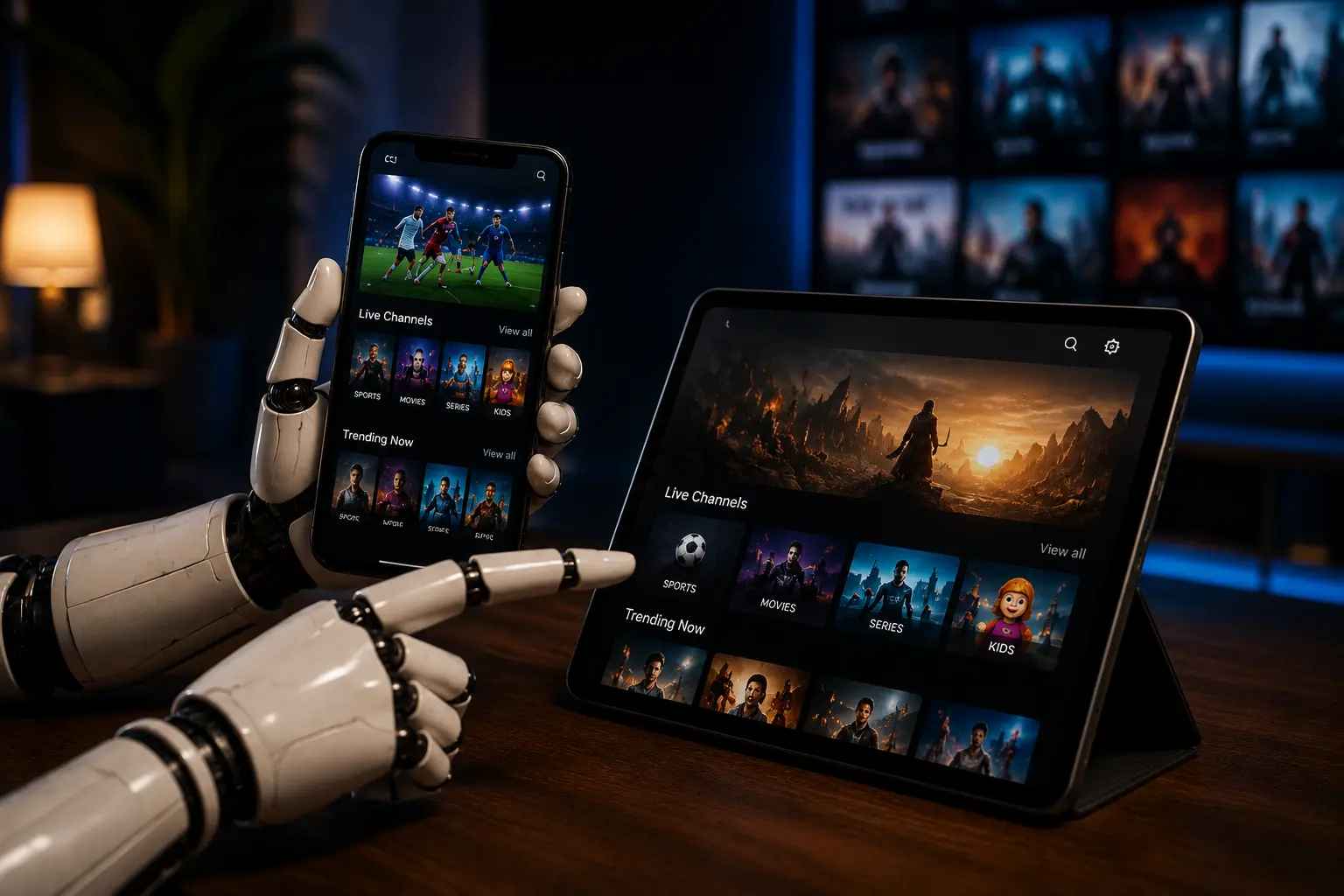
Set Up IPTV On Android & iOS
Watch live TV and VOD on the go with RobotIPTV on your smartphone. Works with top-rated IPTV player apps, activated in minutes — portable, fast, and works from anywhere.
Install on Android / iOS
Download the app. On Android, download IPTV Smarters Pro directly and install it. On iPhone or iPad, install Smarters Player Lite from the App Store.
Open the app once it's installed and enter your login details. There are two ways to add your channels — Xtream Codes API or Playlist (M3U).
Setup via Xtream Codes API
Recommended — this way you get catch-up TV, and you don't need to add an EPG URL, since it loads automatically.
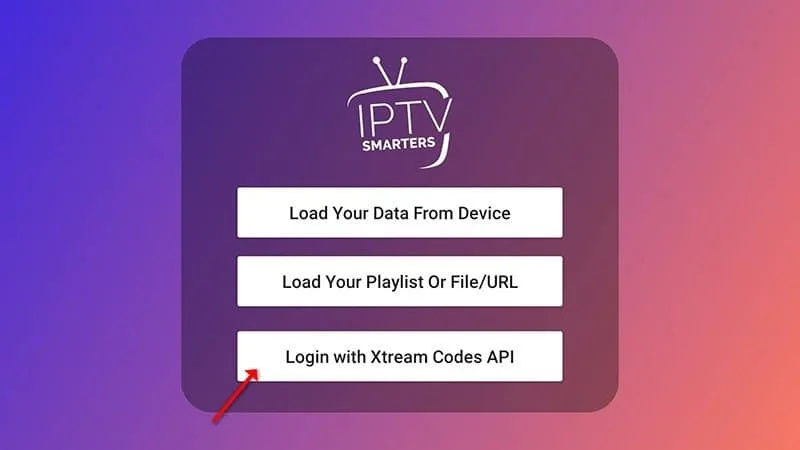
Open the app, tap “Add User,” then tap “Login with Xtream Codes API.”
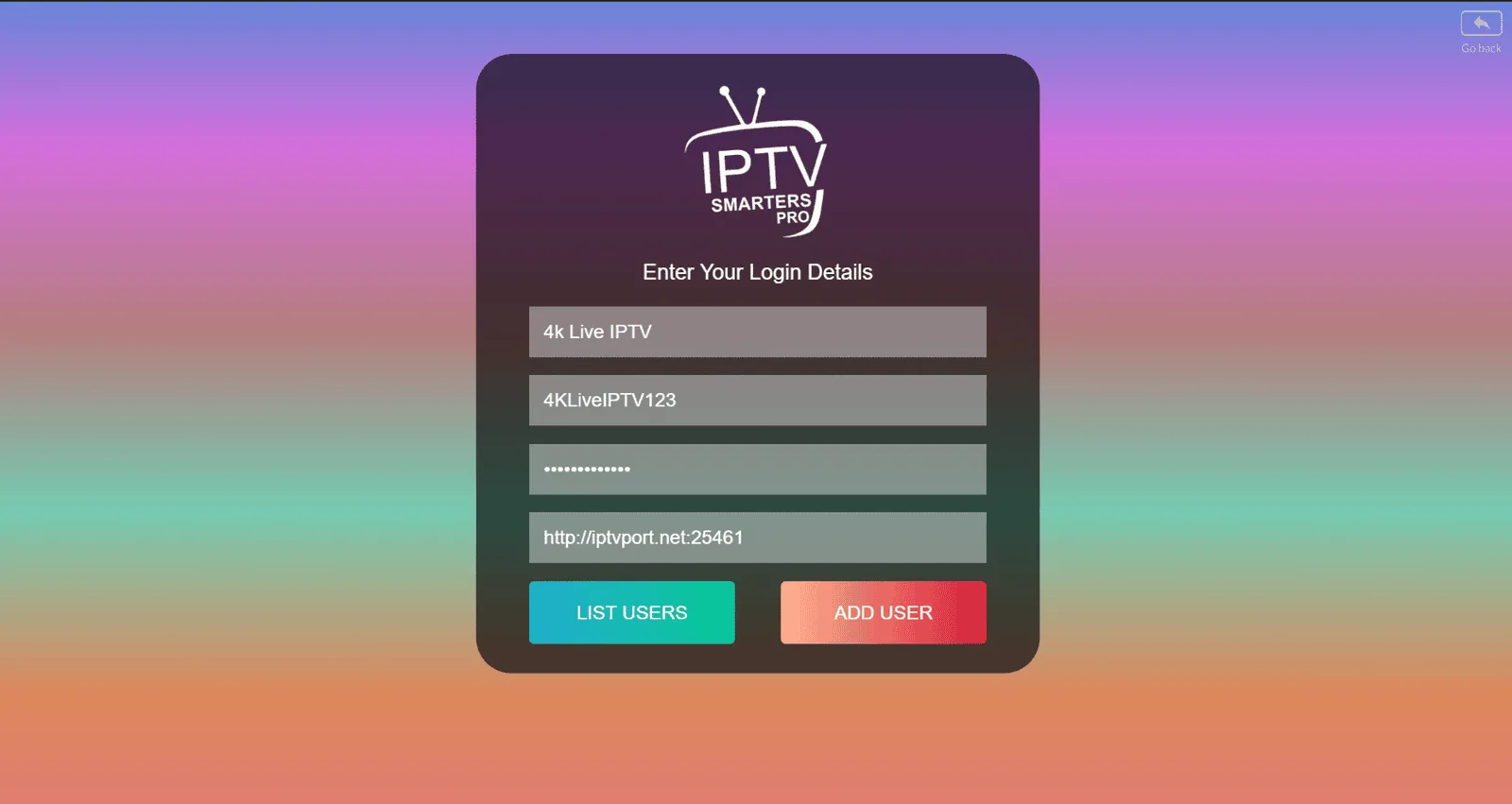
In the first box, choose any name you like (for example “4K Live IPTV”). In the next two boxes, enter the Username and Password, and add the Server URL — all sent to you via WhatsApp, email, or chat. Then tap “Add User” to continue.
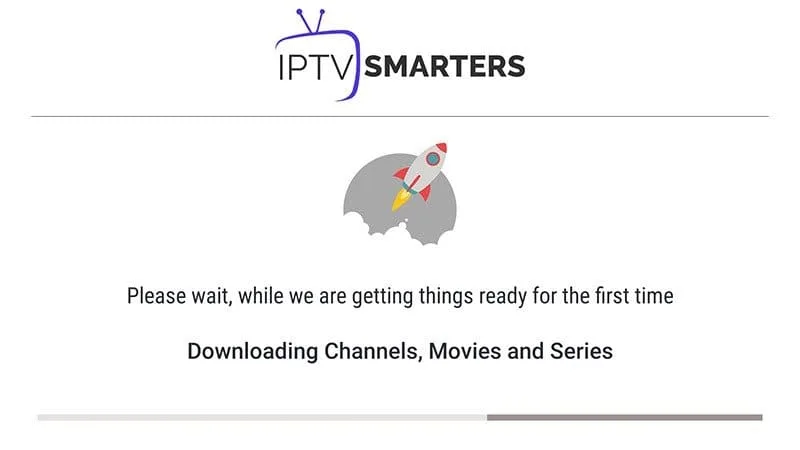
Wait a few seconds while it connects.
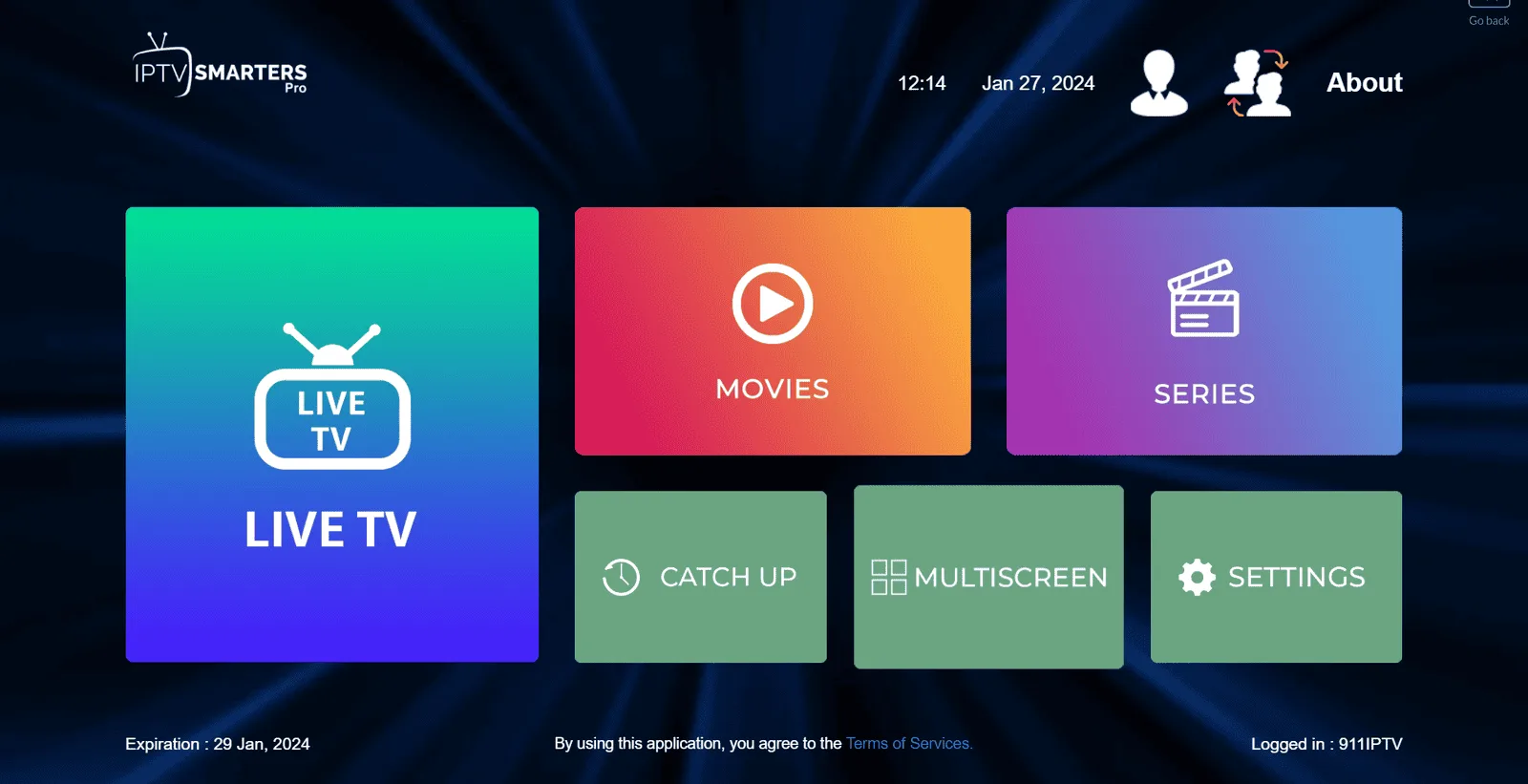
Tap the “Live TV” icon to open your channels.
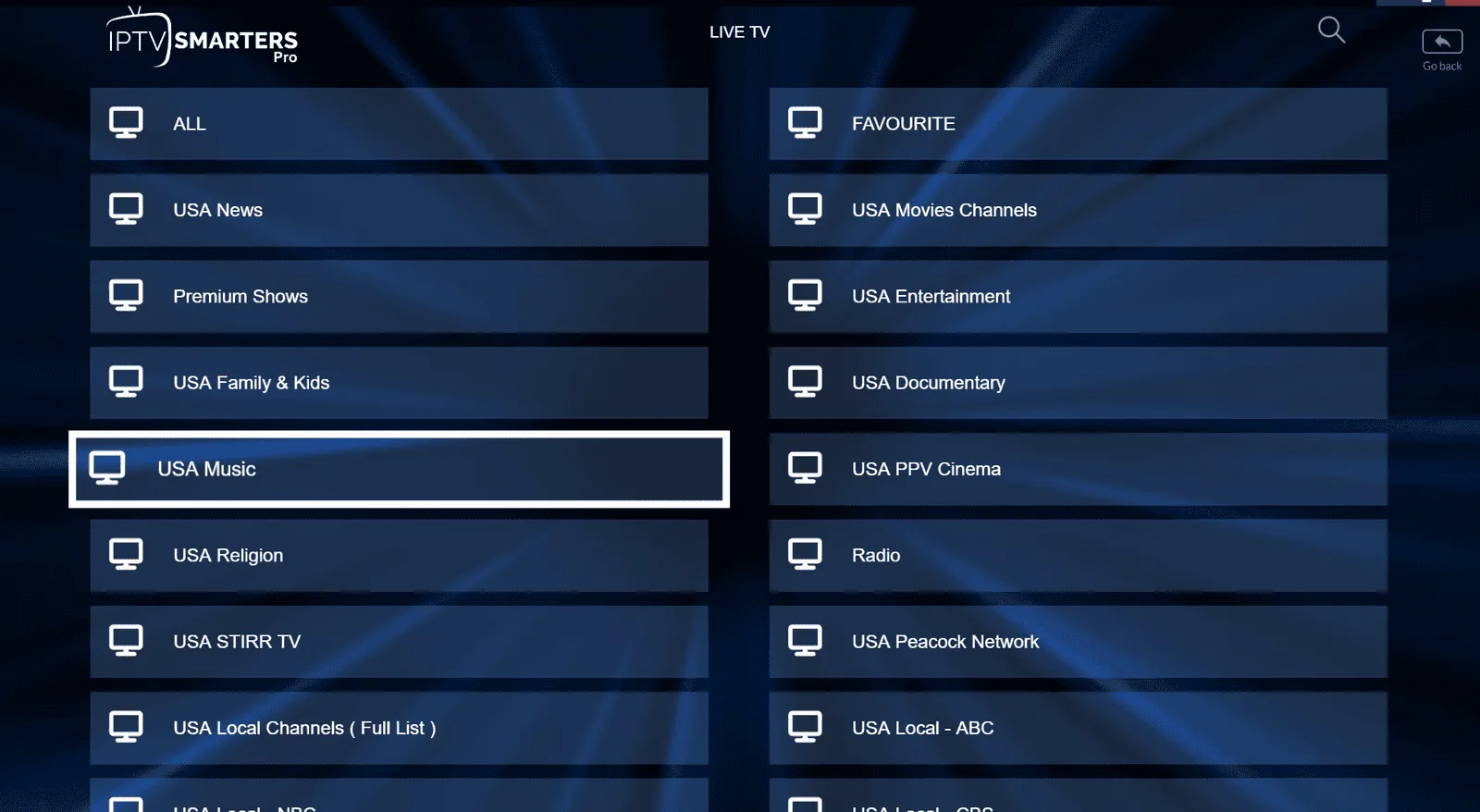
Select the channel group you want to watch, then pick a channel and double-tap the screen for fullscreen.
Setup via Playlist
If you don't have Xtream Codes details, use an M3U URL instead.
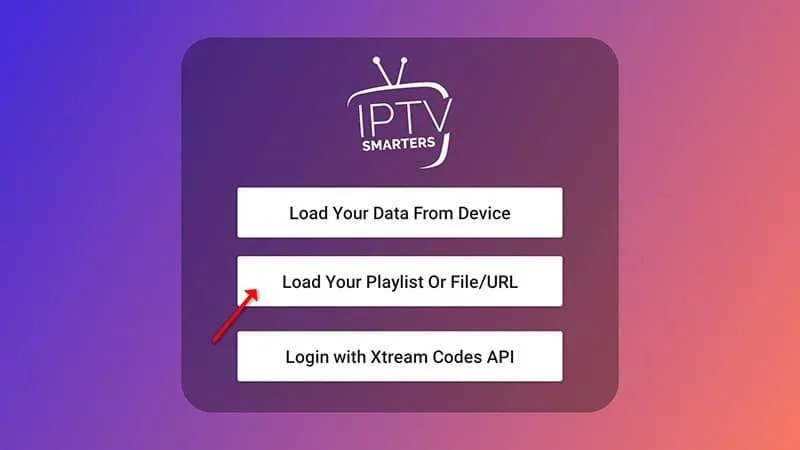
Open the app, tap “Add User,” then tap “Login with Playlist.”
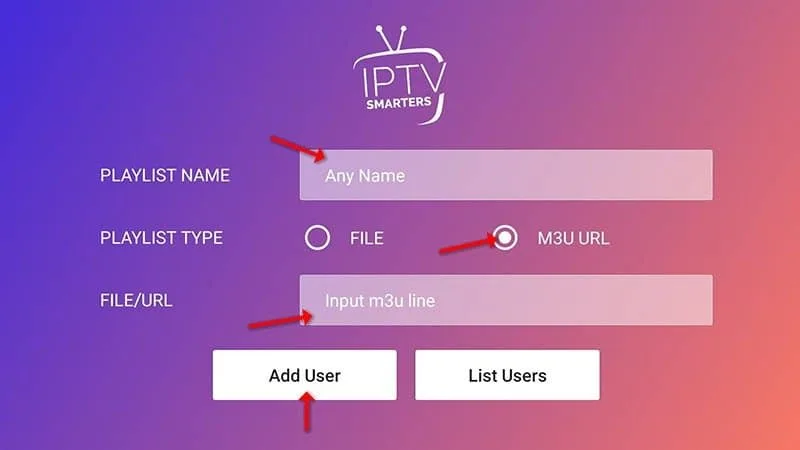
Choose any name you like, select “M3U URL,” and enter the M3U link sent to you via WhatsApp, email, or chat.
Tap the “Live TV” icon, select a channel group, then pick the channel you want to watch.
How To Install IPTV On Firestick
Turn your Amazon Firestick into a streaming powerhouse. In a few steps, access 18,000+ channels and 150,000+ VOD titles in HD & 4K on your big screen.
FireStick Installation Guide
Amazon's App Store doesn't carry IPTV Smarters, so you'll sideload it instead — on your FireStick home screen, open the menu bar and select Settings.
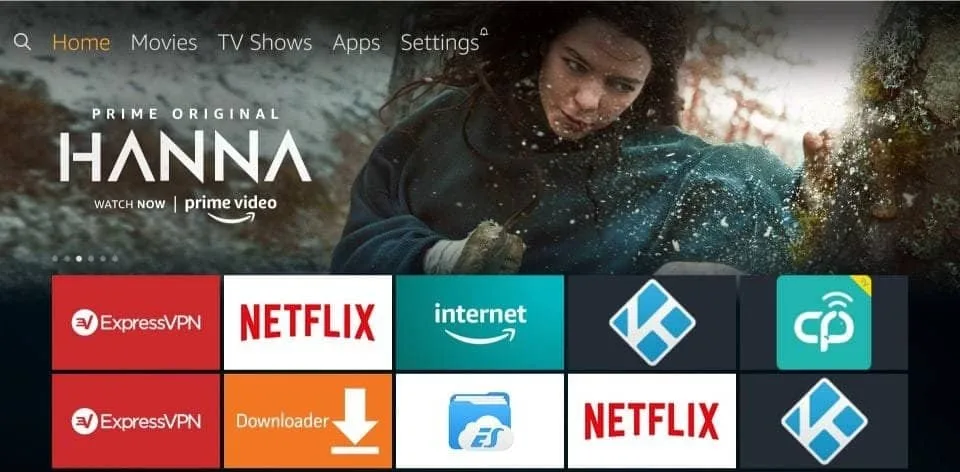
In Settings, choose My Fire TV.
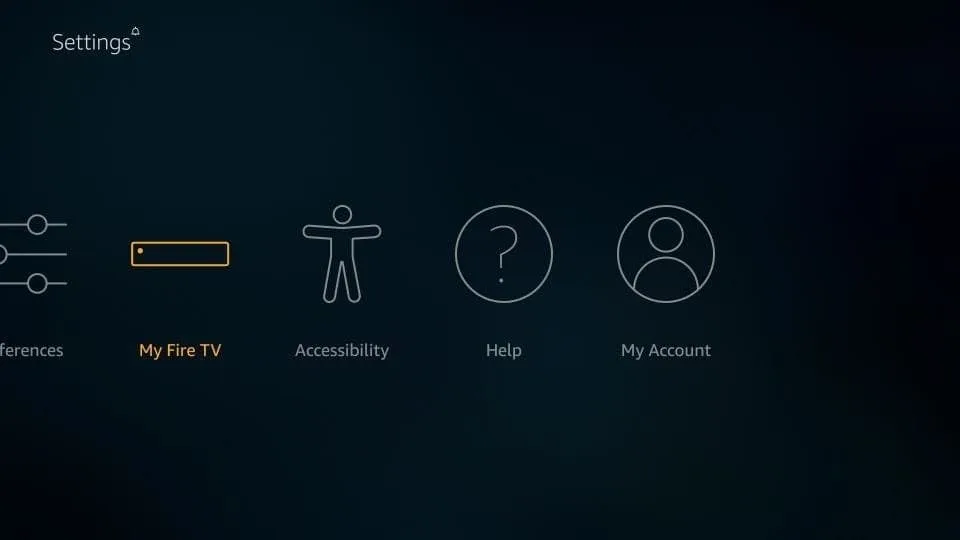
Select Developer Options from the list that appears.
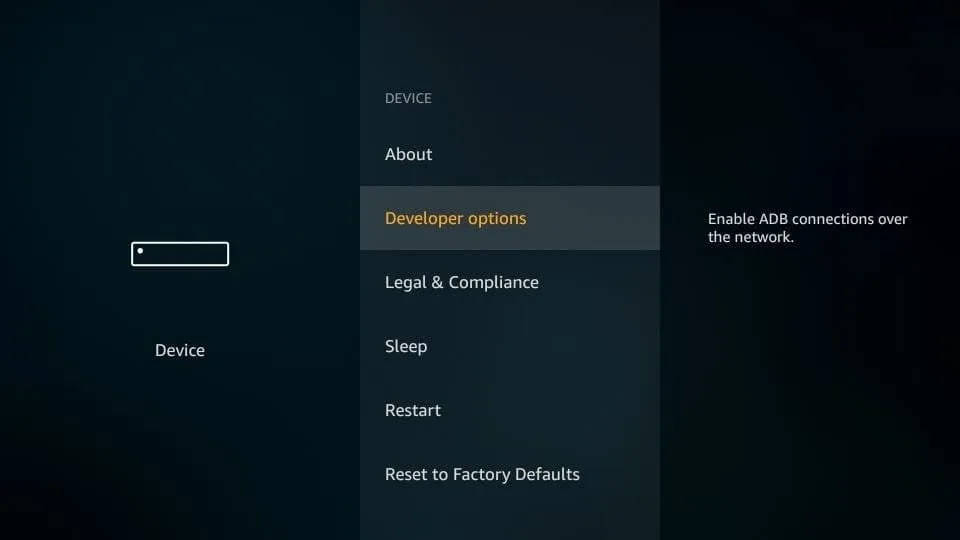
Check whether Apps from Unknown Sources is off, and select it once if it is.
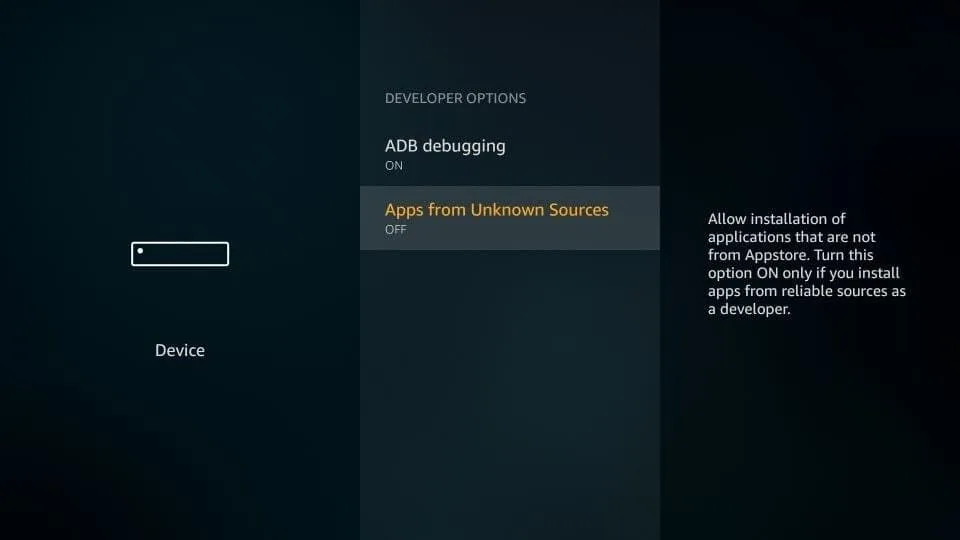
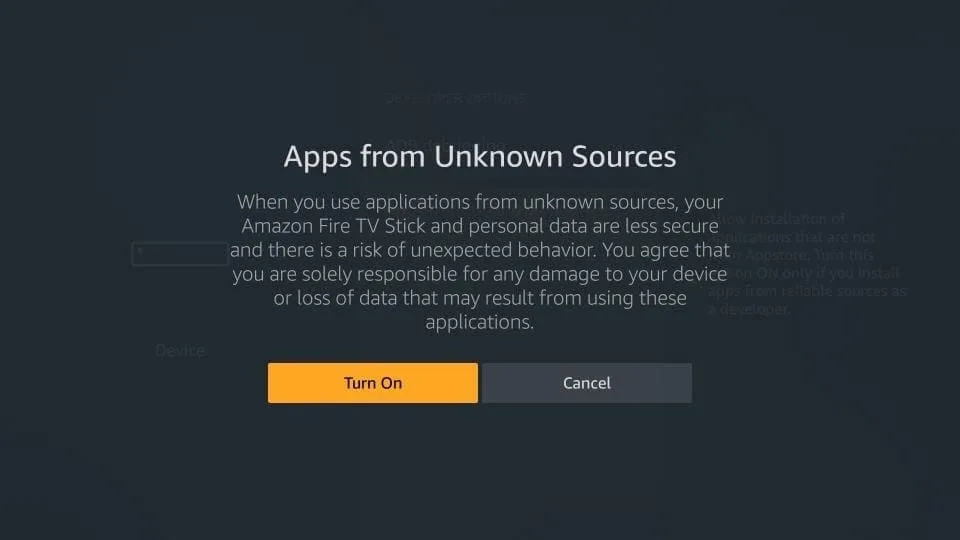
A quick warning message appears — confirm by selecting Turn on to keep it enabled.
Install & sideload IPTV Smarters
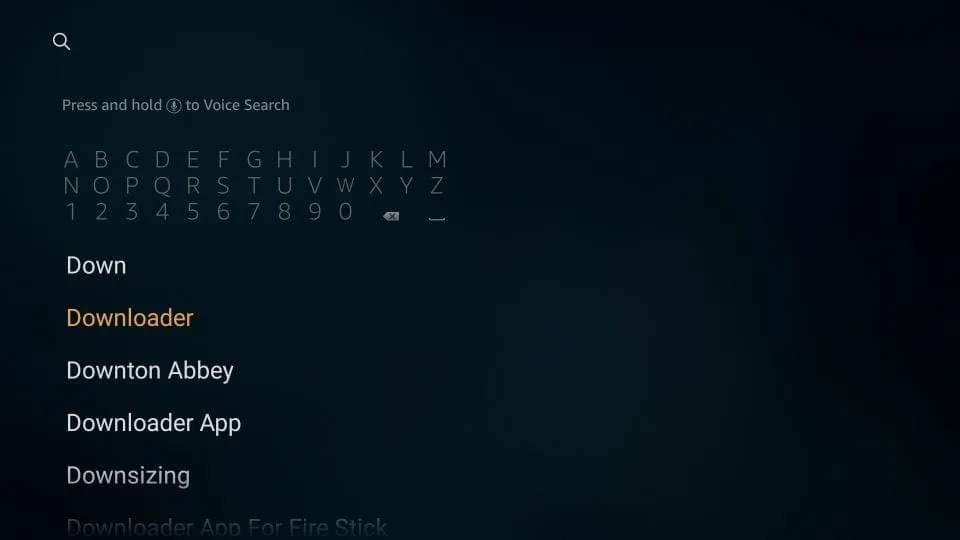
From the FireStick home screen, search for “Downloader” and install it — this is the tool that lets you sideload apps FireStick's store doesn't carry.
Open Downloader. Dismiss the first-run prompts until you reach the home screen, then tap the URL field.
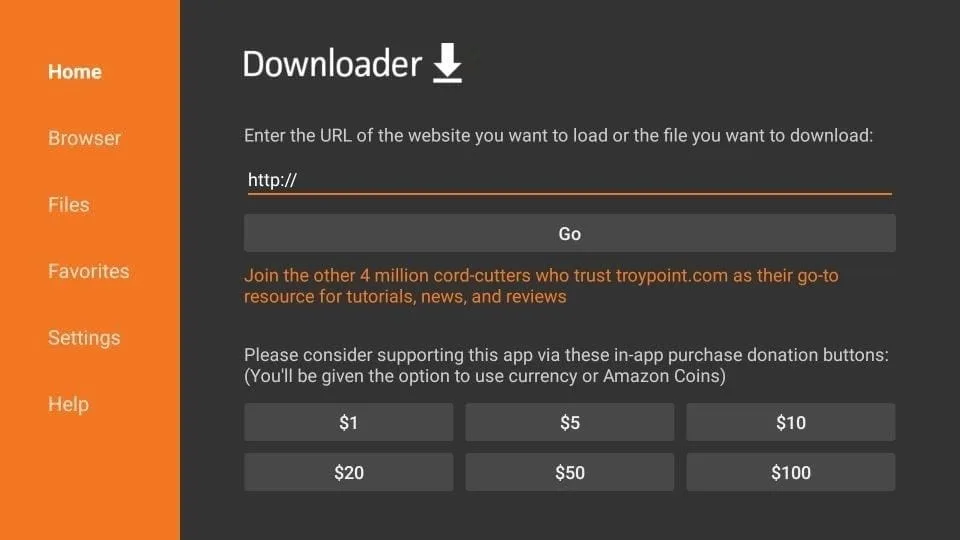
Type in https://iptvsmarters.com/smarters.apk and select Go.
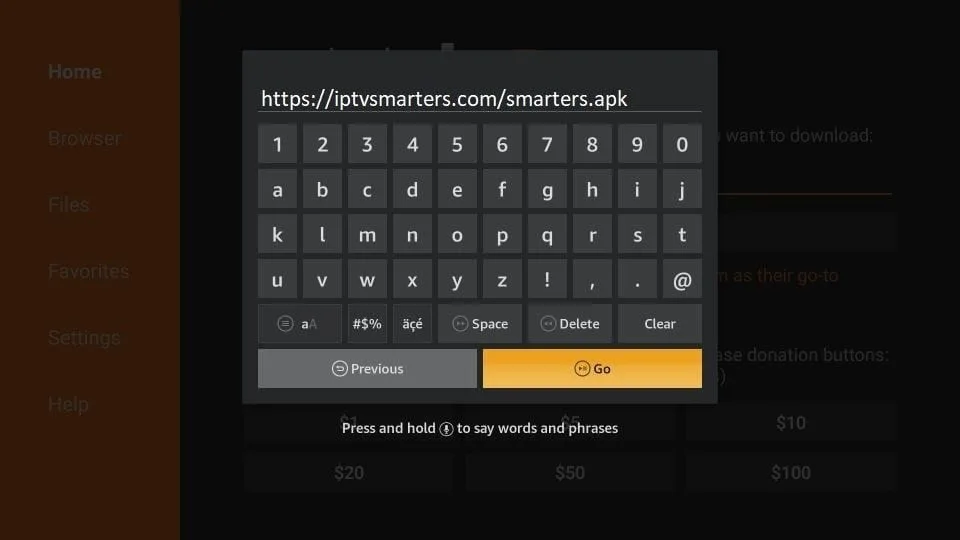
Give it a minute or two while the file downloads.
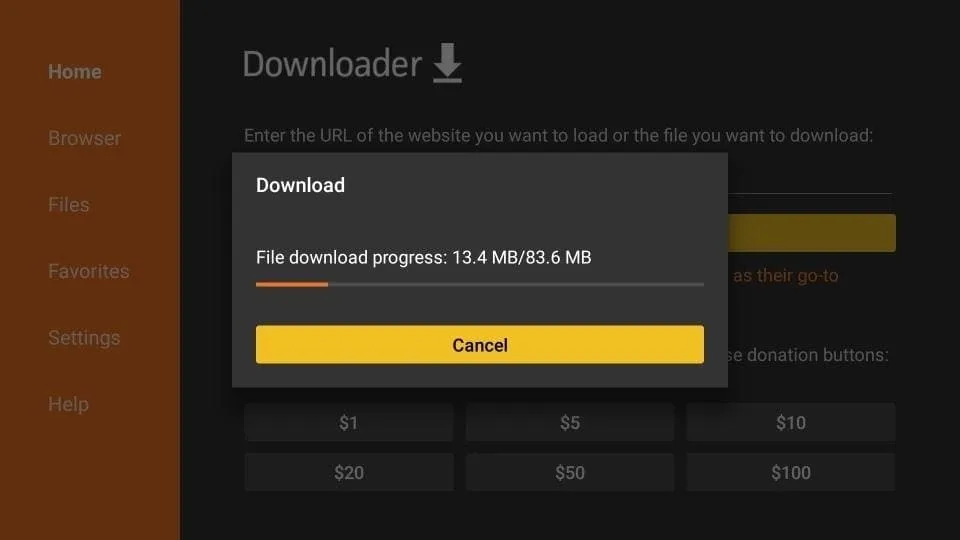
Once it finishes, Downloader opens the installer automatically — tap Install, then wait for it to complete.
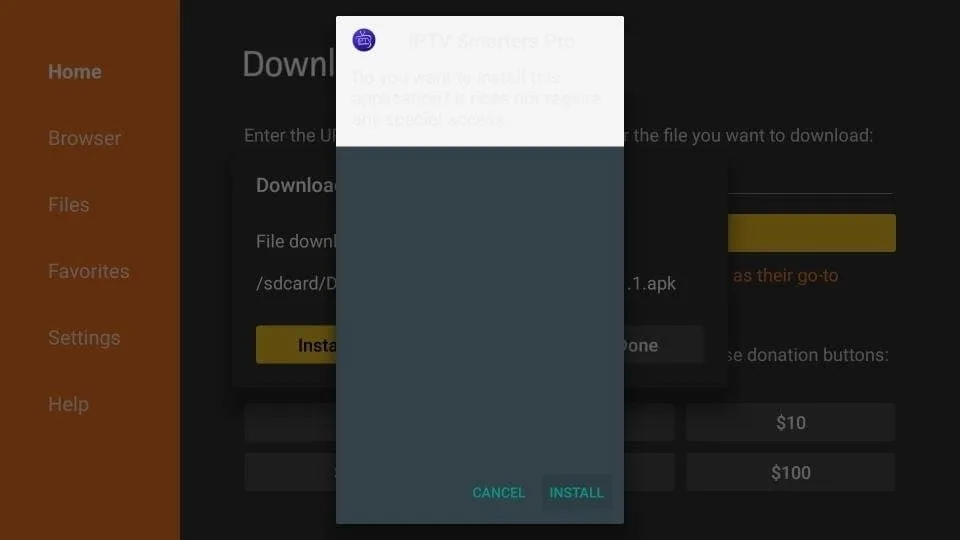
Wait for the installation to finish.
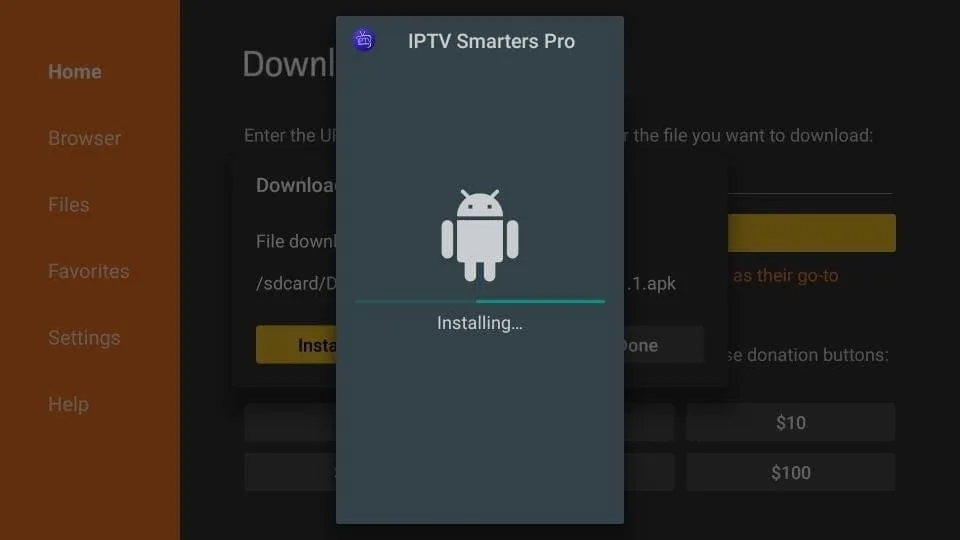
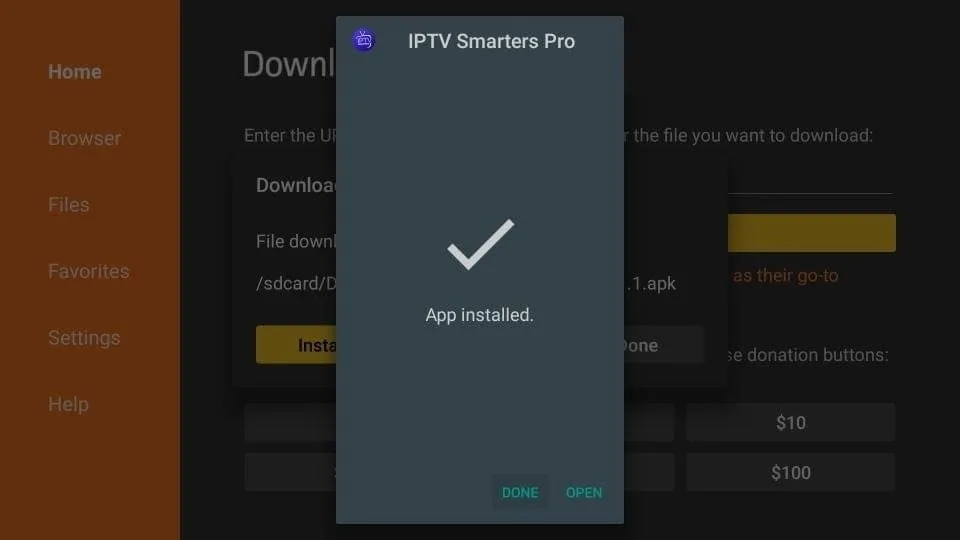
When the install confirmation appears, tap Done rather than Open — this lets you clean up the leftover APK file next.
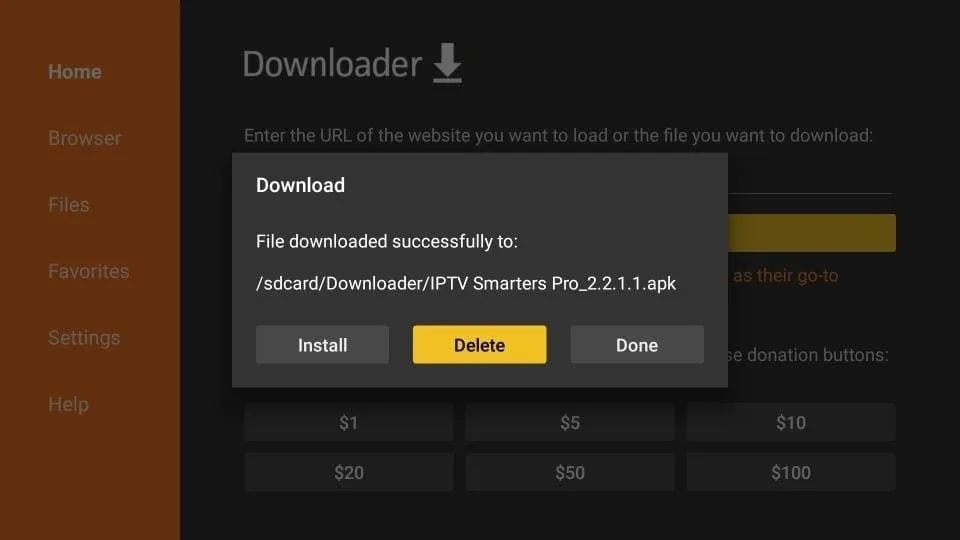
Back on the Downloader screen, tap Delete to remove the APK file and free up storage.
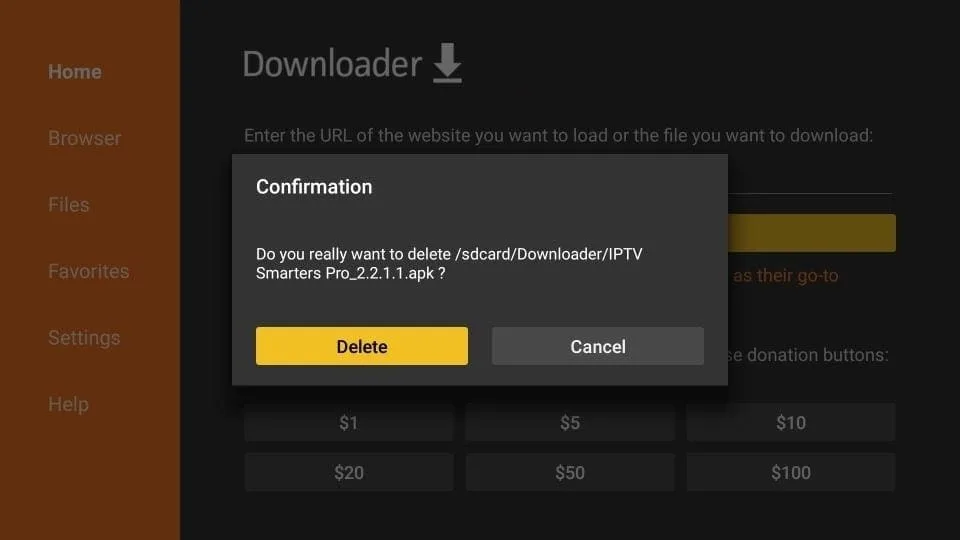
Confirm by tapping Delete once more.
First launch
Open IPTV Smarters. On first launch you'll see a Terms of Use screen — scroll down and tap Accept.
Tap “Add User,” then choose either Xtream Codes API or Playlist, depending on what was sent in your welcome message.
Setup via Xtream Codes API
Recommended — this way you get catch-up TV, and the program guide loads automatically.
Tap “Login with Xtream Codes API.”
Choose any name you like, then enter the Username, Password, and Server URL sent to you via WhatsApp, email, or chat. Tap “Add User” to continue.
Wait a few seconds while it connects.
Select the “Live TV” icon to open your channels.
Pick a channel group, then select a channel and click again to go fullscreen.
Setup via Playlist
No Xtream Codes details? Use an M3U URL instead.
Tap “Login with Playlist” instead.
Choose any name you like, select “M3U URL,” and paste the link you were sent.
Select “Live TV,” pick a channel group, then choose the channel you want to watch.
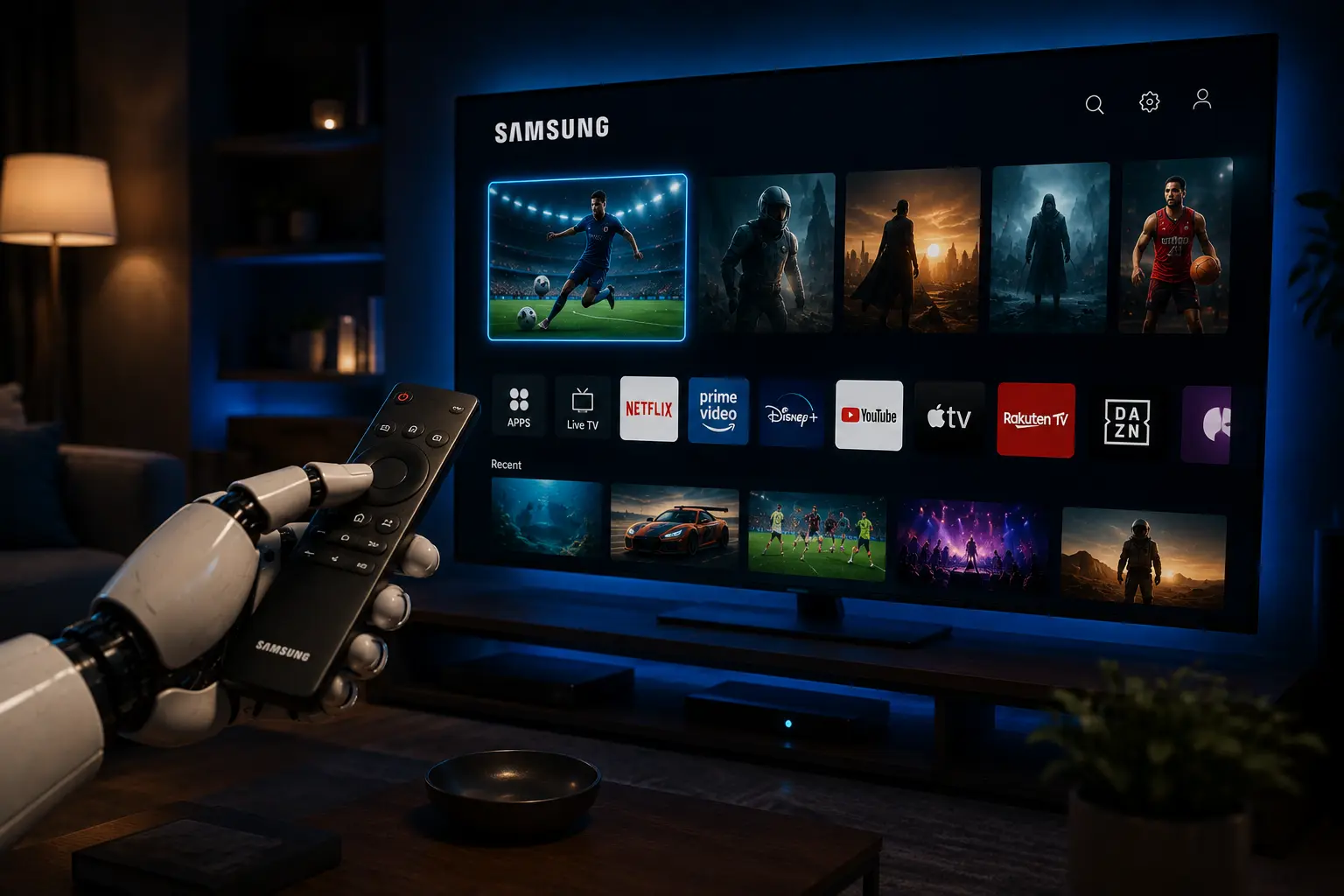
Install IPTV On Samsung & LG Smart TVs
Stream RobotIPTV on your Samsung or LG Smart TV without a separate box. Quick setup, smooth playback across 18,000+ live channels and the full VOD library.
Setup Guide for Smart TVs
For Samsung Smart TV
Press the Smart Hub button on your remote.
Search for and install IPTV Smarters Pro.
Log in using your subscription details — Username, Password, and Portal URL.
For LG Smart TV
Press Home on your remote, then open the LG Content Store.
Search for and install IPTV Smarters Pro.
Log in using your subscription details — Username, Password, and Portal URL.
First launch
On first launch, you'll see a Terms of Use screen — scroll down and select Accept.
Select “Add User,” then choose either Xtream Codes API or Playlist, depending on what was sent in your welcome message.
Setup via Xtream Codes API
Recommended — this way you get catch-up TV, and the program guide loads automatically.
Select “Login with Xtream Codes API.”
Choose any name you like, then enter the Username, Password, and Server URL sent to you via WhatsApp, email, or chat. Select “Add User” to continue.
Wait a few seconds while it connects.
Select the “Live TV” icon to open your channels.
Pick a channel group, then select a channel and click again to go fullscreen.
Setup via Playlist
No Xtream Codes details? Use an M3U URL instead.
Select “Login with Playlist” instead.
Choose any name you like, select “M3U URL,” and paste the link you were sent.
Select “Live TV,” pick a channel group, then choose the channel you want to watch.
Install IPTV On Windows & Mac
Stream RobotIPTV on your Windows PC or macOS device using trusted player apps. Full HD & 4K support, EPG, and multi-device sync included.
Install on Windows / Mac
Download the app. On Windows, get IPTV Smarters Pro for Windows here. On Mac, get the Mac version here. Install it once downloaded.
Open the app and log in with your subscription details — your provider will have sent these to you.
On first launch, you'll see a Terms of Use screen — scroll down and select Accept.
Select “Add User,” then choose either Xtream Codes API or Playlist, depending on what was sent in your welcome message.
Setup via Xtream Codes API
Recommended — this way you get catch-up TV, and the program guide loads automatically.
Select “Login with Xtream Codes API.”
Choose any name you like, then enter the Username, Password, and Server URL sent to you via WhatsApp, email, or chat. Select “Add User” to continue.
Wait a few seconds while it connects.
Select the “Live TV” icon to open your channels.
Pick a channel group, then select a channel and click again to go fullscreen.
Setup via Playlist
No Xtream Codes details? Use an M3U URL instead.
Select “Login with Playlist” instead.
Choose any name you like, select “M3U URL,” and paste the link you were sent.
Select “Live TV,” pick a channel group, then choose the channel you want to watch.
Set Up IPTV On MAG & Enigma2 Boxes
For advanced setups, RobotIPTV supports MAG and Enigma2 boxes directly — ideal for stable, dedicated streaming with full EPG integration and multi-connection support.
Guide for MAG / Enigma2
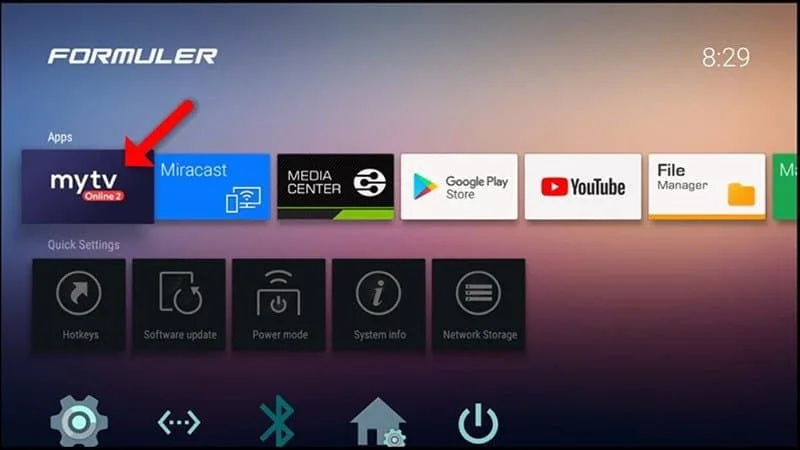
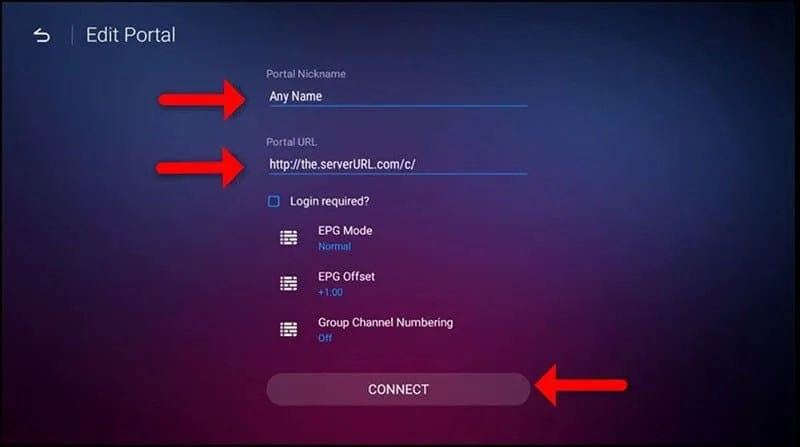
Most MAG and Formuler-style boxes come with a player app pre-installed. If yours doesn't, download a compatible IPTV app from the box's app store first.
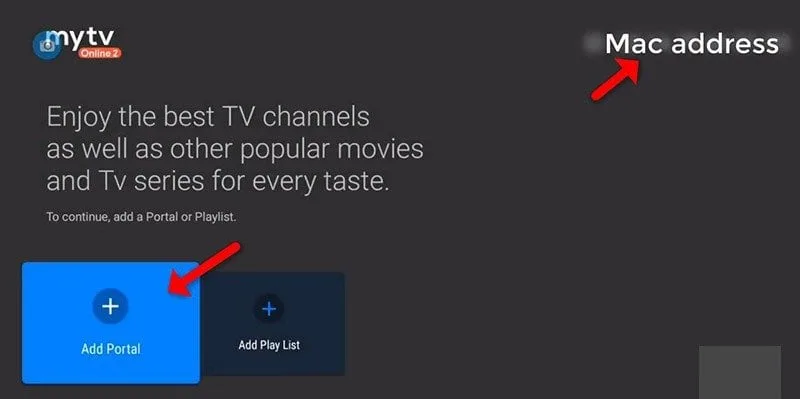
Find your box's MAC address — it's usually shown in the top corner of the home or portal screen. You'll need to send this to us so your subscription can be linked to your box.
Open the Portal settings, enter the Portal (Middleware) URL we send you after checkout, then select Connect.
Give it a moment — once connected, your full channel list loads automatically.
Now that you know how to install IPTV on your device of choice, you're a few minutes away from streaming. If anything doesn't go as expected, our support team is available 24/7 to walk you through it.
Do you have any questions?
Feel free to contact us if you need help with setup — real support, day or night.
Contact Us →