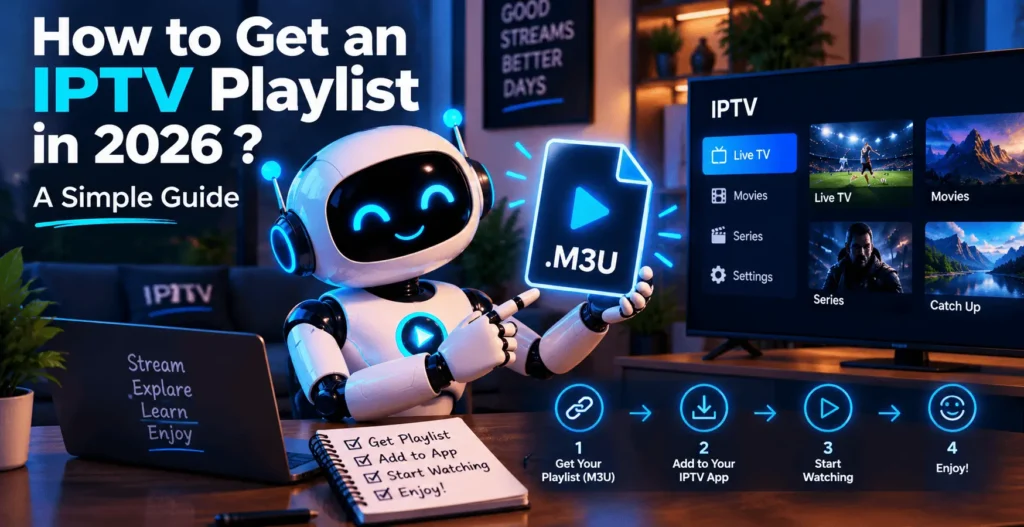
How to Get an IPTV Playlist in 2026 ? A Simple Guide

If you’ve spent any time researching IPTV, you’ve probably run into the term IPTV playlist and wondered what it actually is, or how you’re supposed to get one. Short answer: it’s just a file, or sometimes a link, that tells your player app where to find channels and content. No playlist, no channels, no matter how good your app or your internet connection is.
This guide walks through what an IPTV playlist actually does, where a legitimate one comes from, and how to load it into the apps people actually use: VLC, Kodi, and TiviMate. It also covers why playlists stop working and how to fix the usual suspects without guessing.
| Attribute | Details |
|---|---|
| Topic | How to Get an IPTV Playlist |
| Level | Beginner |
| Devices Covered | Windows / Mac, Android, Firestick / Fire TV (via VLC, Kodi, or TiviMate) |
| What You Need | A legitimate IPTV playlist (M3U link or Xtream Codes) and a compatible player like VLC, Kodi, or TiviMate |
In This Guide
What is an IPTV playlist?
An IPTV playlist is essentially a list of stream links, one per channel or piece of content, bundled into a single file your player can read. Instead of an app hard-coding channels the way a cable box does, IPTV apps stay blank until you feed them a playlist. The app reads through it, builds a channel list on screen, and from there you’re just picking what to watch.
Most playlists use the M3U or M3U8 format, both of which are plain text under the hood. Open one in a text editor and you’ll see a series of URLs with a bit of metadata attached: channel name, logo, group. It’s not fancy. That’s kind of the point, a format this simple can be read by dozens of different apps without anyone needing to agree on anything more complicated.
How does an IPTV playlist work?
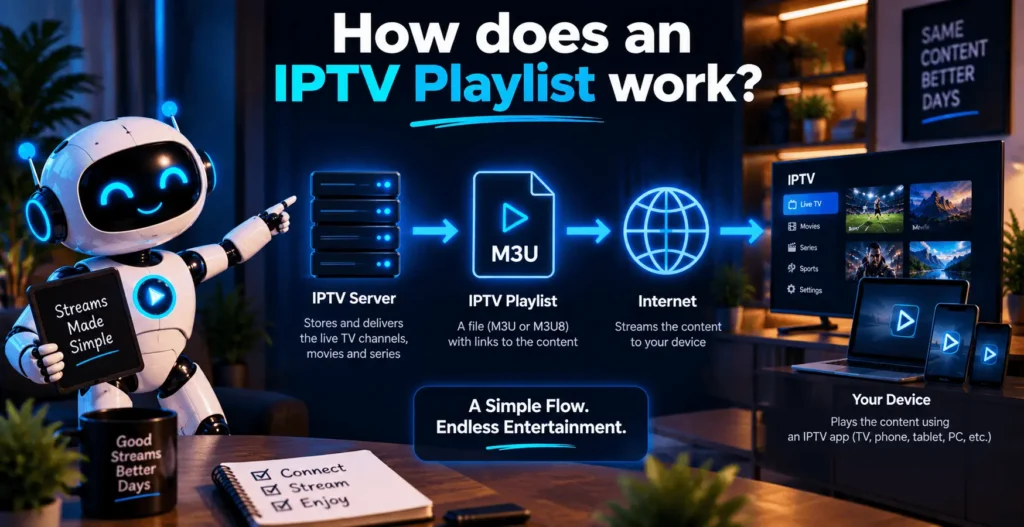
Once a player loads an IPTV playlist, it parses each line and turns it into something you can actually click on: a channel name, sometimes a logo, and the stream URL sitting behind it. Tap a channel and the app requests that URL directly from wherever it’s hosted, then starts playing whatever comes back.
The playlist itself doesn’t store any video. It’s closer to a table of contents than a hard drive full of content, pointing your app toward servers that are actually streaming the channels. That’s also why a playlist can stop working even when nothing about the file itself has changed. If the server behind one of those links goes down, the playlist is still technically fine, it just has nothing left to point to.
Where can you get an IPTV playlist?
There are really three places an IPTV playlist comes from, and it’s worth being honest about the differences.
Provider-supplied playlists are what you get when you pay for an IPTV subscription. The service gives you a playlist URL or Xtream Codes login, and that link stays tied to your account, updates automatically, and comes with whatever content rights the provider actually holds. If you’re comparing subscription-based options, you can also explore our IPTV services to see what a typical provider setup looks like.
Public or authorized playlists are a smaller, less-talked-about category: openly available channel lists, usually for things like public broadcast networks, government channels, or content the copyright holder has deliberately made freely distributable. These aren’t hidden or sketchy by nature, they’re just niche, and they tend to cover a narrower range of content than a paid service.
Then there’s the free public IPTV playlist territory people search for most, and this is where things get murky. Some of what shows up under that kind of search really is legitimate, openly available content.
A lot of it, though, is nothing more than someone’s redistributed subscription lineup, repackaged and passed around without anyone checking whether the original source had the rights to share it in the first place. A playlist format being free to copy doesn’t mean the content inside it is free to distribute.
The safest approach is treating any playlist you didn’t get directly from a provider you trust with real suspicion. Check whether the source explains where the channels actually come from. If a free, popular IPTV playlist claims to include premium sports or cable networks with zero explanation of licensing, that’s a signal to walk away, not a bargain to jump on.
IPTV Playlist vs. IPTV URL vs. M3U Playlist
These three terms get mixed up all the time, but they don’t actually mean the same thing.
| Term | What it means | Simple example |
|---|---|---|
| IPTV playlist | A list of channels or content that an IPTV player can load. | Your full channel list |
| IPTV URL | The web address used to access a playlist, or sometimes a specific stream. | A link you paste into your IPTV app |
| M3U playlist | A specific file format used to store a list of IPTV streams and related information. | An .m3u or .m3u8 file |
The easiest way to think about it is this: the playlist is the list, the URL is how you access it, and M3U is one of the formats used to store that list. If an app asks for a “playlist URL,” it normally means the URL of the playlist itself, not the link to one individual channel.
How to add an IPTV playlist
The general process for adding a playlist is the same no matter which app you’re using, even though the exact menus differ.
You need a compatible IPTV app already installed, the playlist URL or the M3U file itself, and a few minutes to enter it correctly, since a single typo in a long URL is the most common reason this step goes wrong. Most apps ask you to paste the playlist link directly rather than upload a file, though a handful still support importing a local M3U file if you’ve downloaded one.
If you haven’t installed a player yet, or you’re setting up IPTV for the first time in general, our IPTV installation guide covers picking an app and getting the basics running before you get to the playlist step.
Once the app is installed, adding the playlist usually looks like this: open the app, find the option to add a new playlist or profile, choose the M3U or URL entry method, paste in your playlist link, and save. Give it a minute to load. A working IPTV playlist should populate a full channel list; if it comes back empty, that’s usually the first sign something’s off with the link itself.
Adding a playlist in VLC
VLC is one of the easiest places to test whether an IPTV playlist actually works, since it doesn’t need an account or any setup beyond opening the app.
Open VLC, go to Media, and select Open Network Stream. Paste your playlist URL into the address field and hit play. If the playlist is formatted correctly, VLC loads it as a stream and starts playing the first channel; if you want to browse the rest of the list, VLC’s playlist view, under View, then Playlist, shows every channel the M3U file contains.
VLC isn’t built specifically for IPTV the way TiviMate or IPTV Smarters are, so you won’t get an EPG or a polished channel guide. What it’s genuinely good for is confirming a playlist link is valid before you spend time setting it up somewhere more permanent. For the full rundown of Open Network Stream and VLC’s other playback options, the official VLC documentation covers it in more detail than most people will ever need.
Adding a playlist to Kodi
Kodi doesn’t handle IPTV natively either, but the IPTV Simple Client add-on gives it the same playlist support most dedicated apps have.
After installing the add-on from Kodi’s add-on repository, you’ll find its settings under Add-ons, then My add-ons, then PVR clients. From there, you can enter your IPTV playlist as either a local file path or a remote URL, and do the same for an EPG source if your provider gives you one separately. Save the settings, restart Kodi’s PVR or Live TV component when prompted, and the channel list should populate from your playlist.
The add-on has more configuration options than VLC: buffering settings, catch-up support, EPG time offsets, which makes it a solid choice if you’re already using Kodi as your main media setup and don’t want to run a second app just for live channels. The official Kodi IPTV Simple Client documentation walks through every setting field if you get stuck on a specific option.
Adding a playlist to TiviMate
TiviMate is built specifically around IPTV playlists, which is part of why it’s a popular choice on Android-based devices and streaming sticks.
Setup starts with adding a new playlist source, choosing the M3U URL or Xtream Codes option depending on what your provider gave you, and entering the details. TiviMate then builds out a full channel guide with logos and an EPG, assuming your provider supplies one, and generally handles multiple playlists better than most alternatives if you want to keep more than one source active.
It’s especially common on Firestick and Fire TV, and our guide to IPTV apps for Firestick covers TiviMate alongside a few other players worth comparing if you haven’t settled on one yet.
Why is my IPTV playlist not working?
A handful of causes account for almost every “my IPTV playlist stopped working” situation.
The URL might be invalid or expired, which happens more with free or shared playlists than paid ones, since nobody’s maintaining them for the long run. The playlist format itself can be off: a corrupted download, a file saved with the wrong extension, or an M3U file that got edited and broken somewhere along the way. Ordinary internet connection problems cause the same symptoms as a dead playlist, so it’s worth ruling those out first.
App compatibility is a real issue too, since not every player parses every M3U variant identically, and something perfectly valid in one app can throw an error in another. Provider-side issues come up as well: a server outage, maintenance, or the provider changing its playlist URL without telling anyone. And sometimes a playlist that worked fine last month is just outdated, referencing channels or a server address that’s no longer live.
How to fix common playlist problems
Start with the simple checks before assuming anything’s seriously broken.
Re-copy the playlist URL from scratch rather than trusting a saved version, since a stray space or a missing character at the end is a common, boring cause of failure. Test your internet connection separately from the app; a quick speed check rules out half the possible causes in one step.
If the playlist loads in one app but not another, the problem is probably the app’s parser rather than the playlist itself, worth trying a second player before assuming the link is dead. Contact your provider if a paid IPTV playlist stops working across every app you try, since that usually points to something on their end rather than yours.
For playlists you maintain yourself, keeping a saved backup of a known-working URL, along with the date you last confirmed it worked, saves a lot of guessing the next time something breaks.
IPTV playlist: pros and cons
Pros
- Works with just about any player, VLC, Kodi, and TiviMate all read the same M3U format, so you’re not locked into one app.
- No proprietary hardware or special setup needed, just a compatible player and the playlist link.
- A provider-supplied playlist updates itself automatically, so you don’t need to rebuild anything when the lineup changes.
- Switching between players is easy since the playlist itself doesn’t change, only the app reading it does.
Cons
- One dead or expired link is enough to take down the entire channel lineup at once.
- Free or public playlists vary a lot in reliability and legitimacy, so the source needs checking before you trust it.
- App compatibility isn’t universal; a playlist that loads fine in one player can throw errors in another.
Wrapping up
An IPTV playlist is really just a list of stream links dressed up as a file your app can read, whether that comes from a paid provider, a genuinely public source, or something in between that deserves a closer look before you trust it.
Getting one set up in VLC, Kodi, or TiviMate follows the same basic steps everywhere: install a player, paste in the link, and let the app do the parsing. Most of what goes wrong afterward traces back to a small handful of causes, an expired link, a bad connection, or a provider-side hiccup, rather than anything mysterious.
Frequently asked questions
How do I get a playlist for IPTV?
The most reliable way is through a paid IPTV subscription, which gives you a playlist URL or Xtream Codes login tied to your account. Genuinely public or authorized playlists exist too, though they cover a narrower range of content, and any playlist advertised as free should be checked carefully before you trust it.
How do I add an IPTV playlist to a player?
Open your player’s settings, find the option for adding a new playlist or profile, choose the M3U or URL entry method, and paste in the playlist link. Most apps load the channel list within a minute or two once the link is entered correctly.
How do I add an IPTV playlist in VLC?
Open VLC, go to Media, then Open Network Stream, and paste the playlist URL into the address field. VLC loads it as a stream, and you can browse the full channel list under View, then Playlist.
How do I add an IPTV playlist to TiviMate?
Add a new playlist source in TiviMate, choose whether you’re entering an M3U URL or Xtream Codes details, and enter what your provider gave you. TiviMate builds the channel guide automatically from there, EPG included if your provider supplies one.
Is a free public IPTV playlist legal to use?
It depends entirely on the source. A genuinely public playlist, covering content the rights holder has made freely available, is fine. A playlist redistributing premium or copyrighted channels without permission isn’t, regardless of whether it’s labeled “free” or “public.”
Final thoughts
If you’re just getting started, don’t overthink this: get a playlist from a provider or source you actually trust, drop it into VLC first to confirm it works, then move it into whichever app, TiviMate, Kodi, or something else, you plan to use day to day. Skip anything that looks like a repackaged premium lineup with no explanation of where it came from. The format is simple; the part worth being careful about is where the list itself originated.