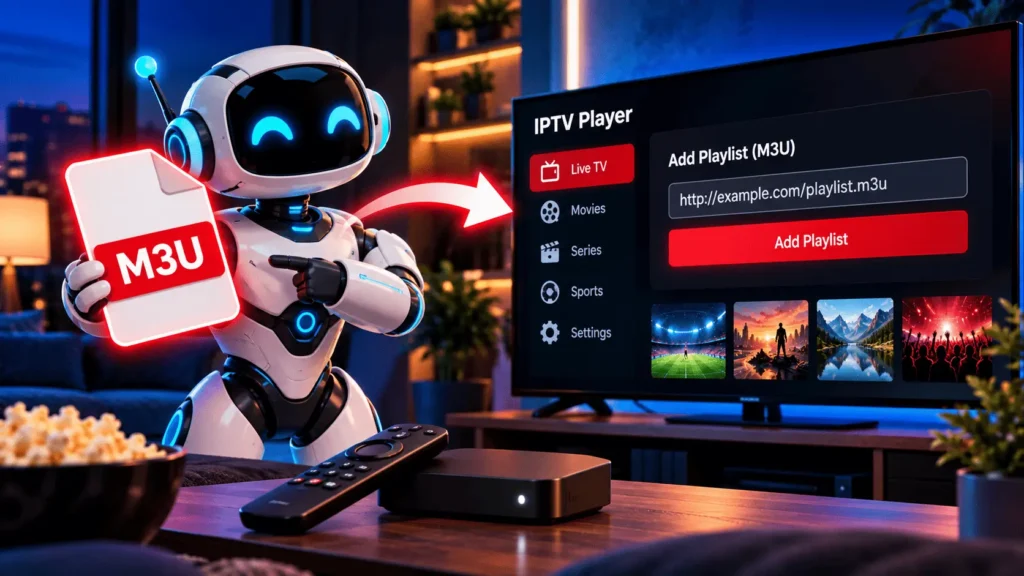
M3U IPTV: How to Add a m3u Playlist to an IPTV Player

M3U IPTV setup comes down to one task: giving a player app a list of streams to show you. That’s really all it is. You’re not installing content, you’re pointing an app at an address or a file so it knows what to display.
This guide walks through adding an M3U file or M3U URL to a compatible IPTV player, what you need in place before you start, and what to check when a playlist stalls, loads empty, or throws an error.
| Attribute | Details |
|---|---|
| Topic | Adding an M3U playlist to an IPTV player |
| Level | Beginner |
| Devices Covered | Firestick, Android TV, Smart TV, Phone, PC & Mac |
| What You Need | An M3U file or M3U URL, a compatible IPTV player, and a stable internet connection |
In This Guide
What is M3U IPTV?
“M3U IPTV” usually just means using an M3U playlist inside an IPTV player. The playlist is a plain text list of stream addresses. It isn’t the content itself, think of it more like an index: a set of links the player reads through and turns into a channel list you can actually click on.
An M3U file holds one entry per channel or piece of content, a name, sometimes a logo or category, and the stream’s URL. The player parses that, lists out what it finds, and leaves the actual streaming to whatever server sits behind each link. Most M3U playlists are built around live TV channels, though some providers also fold in on-demand titles (VOD) alongside the live lineup.
This distinction trips people up constantly. A playlist and a subscription aren’t the same thing. You can have a completely valid M3U file and still get nothing, if the service behind it is down, or if the subscription tied to it has expired. For a longer look at how these playlists actually work and where they come from, our IPTV M3U playlist guide covers that in more depth.
What you need before adding an M3U playlist
Before touching any settings, a few things need to already be in place for M3U IPTV to work at all.
You need the playlist itself, an M3U file or M3U URL, from a legitimate source. You need a compatible IPTV player installed. You need a device that player actually runs on. A stable internet connection matters more here than with most apps, since IPTV streams live rather than buffering a file in advance. And depending on the provider, you might also need account credentials alongside the playlist link itself.
None of this works if the source behind the playlist isn’t legitimate. A fast connection and a polished app don’t fix a playlist pointing at content nobody has the rights to distribute.
How to add an M3U playlist to an IPTV player
Setting up M3U IPTV follows roughly the same general process across most apps, even though menu names and screens differ.
- Get the correct M3U URL or file from your provider or source.
- Open your IPTV player.
- Find the option to add or import a playlist.
- Pick the input method, URL or local file, depending on what your player supports.
- Enter the playlist information carefully.
- Save it.
- Wait for the channel list to populate, then test playback.
That’s the shape of it almost everywhere, but the specifics vary by app. Some call this “add playlist,” others “add profile” or “add user.” A few only accept a URL and won’t let you import a local file at all. If a step doesn’t match what you’re seeing, check your specific player’s settings menu, app developers don’t exactly coordinate their wording with each other.
Adding an M3U file
An M3U file sits on your device already, downloaded or transferred from wherever it came from. Your player needs a way to browse to it, usually through a “local file” or “import file” option inside its playlist settings. Once you select it, the app reads through the file directly.
Adding an M3U URL
An M3U URL points to a playlist hosted online instead of sitting on your device. You paste the address into your player rather than uploading anything. This tends to be the more common method, since a provider can update what’s behind that URL without you downloading a new file every time something changes.
When entering a URL, double-check it before saving. A missing character or a stray space at the end is probably the single most common reason a playlist fails to load on the first try.
If you just want to confirm a playlist link actually works before setting it up properly in a dedicated app, VLC can open an M3U URL directly through its network stream option. VLC’s official documentation covers exactly how to open a network stream if you want to test one this way.
How to add M3U to IPTV Smarters or IPTV Smarters Pro
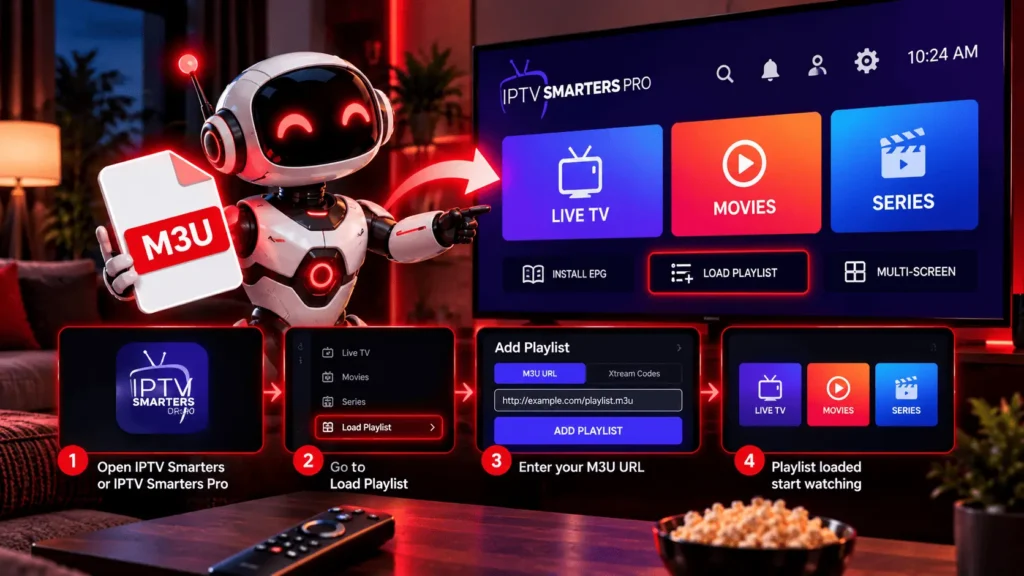
Both IPTV Smarters and IPTV Smarters Pro, whose developer has more detail on Smarters Pro’s official website, support loading a playlist through an M3U URL, alongside Xtream Codes login as a separate option where a provider offers it. During setup you’ll normally see a choice between entering a playlist URL and entering Xtream Codes credentials (username, password, server address). These are two different ways of connecting to a service, not two names for the same thing, so pick whichever one matches what your provider actually gave you.
The exact screens have shifted across versions and keep shifting, so rather than describe menu taps that might be outdated by the time you read this: open the app, look for “add user” or “add playlist,” and choose the M3U option if that’s what you have. If the interface looks different from what you expected, that’s probably a version difference rather than something you’re doing wrong.
How to refresh an M3U playlist and update the EPG
A playlist that worked last week can go stale. Channels get added, removed, or reorganized on the provider’s end, and your app’s copy doesn’t know about any of it until it checks back in.
Most players have a manual refresh or reload option somewhere in the playlist settings, sometimes labeled “update,” sometimes just a refresh icon. Running it pulls the current version of the list again.
EPG, or electronic program guide, is a separate piece from the playlist itself. It’s the data that tells you what’s airing and when. Some providers bundle an EPG feed in automatically, others require you to add a guide URL separately in the app’s settings. If your channels load fine but no programming information shows up, that’s usually a missing or unentered EPG source rather than a sign the playlist itself is broken.
Not every provider or player offers full EPG or catch-up support, so don’t assume it’s included by default.
Devices that may support M3U IPTV
Most common streaming hardware can run some IPTV player that accepts M3U playlists, but what’s actually available depends on the specific app, not the device category as a whole.
Fire TV and Firestick support several IPTV apps through the Amazon app store, and our guide to the best IPTV for Firestick is worth a look if you’re still deciding which player to install there before you get to the playlist step. Android TV boxes work in a similar way, generally with a broader range of apps available. Smart TVs vary a lot by brand: some support IPTV apps natively, others need you to cast from a phone or plug in a separate streaming stick. Android phones and tablets, iPhone and iPad, and Windows or Mac computers can all run dedicated IPTV players too, with desktop environments tending to be the easiest to troubleshoot since you can actually see the error messages.
None of this guarantees a specific app on a specific device will handle your particular playlist correctly. M3U compatibility isn’t universal across players, and it’s worth confirming before you commit to any single setup.
Common M3U IPTV problems and how to troubleshoot them
A handful of issues account for most M3U IPTV problems people run into.
An invalid or mistyped M3U URL is the most common one by a wide margin. Re-copy it from the original source rather than trusting a saved version, especially if you ever typed it by hand.
Expired or revoked access looks identical to a broken playlist from where you’re sitting: the file or URL hasn’t changed, but nothing the provider sends back actually works anymore. If a playlist that worked fine for weeks suddenly stops, check with whoever provided it before assuming it’s a technical problem on your end.
Sometimes the playlist loads and you can see the channel list, but nothing actually plays. That usually points to the stream server being down or overloaded rather than anything wrong with the playlist file. Missing channels can mean the same thing, or it can mean the provider restructured its lineup and your copy of the playlist hasn’t caught up yet.
EPG not loading, as covered above, is often just a guide URL that was never entered rather than a sign something else is wrong.
And occasionally the problem is simpler than any of this: the app doesn’t actually support the playlist format or URL structure your provider sent you. Not every player handles every variant of M3U identically, so if nothing else explains the failure, trying a second app with the same playlist is a reasonable next step.
Is using an M3U IPTV playlist legal?
M3U is a file format. It organizes a list of stream addresses, nothing more. Whether using one is legal depends on the content those addresses point to and whether whoever’s distributing it actually holds the rights to do so.
The format itself can’t tell you that. A licensed service can hand you an M3U playlist, and so can someone redistributing content they have no right to share, the file looks the same either way. Checking what you’re actually accessing is on the source and the viewer, not the technology.
M3U IPTV: pros and cons worth knowing
Pros
- Works across most common devices, Firestick, Android TV, Smart TV, phone, PC, or Mac, as long as the app on that device supports M3U
- A single playlist can cover a full channel list without installing anything extra beyond the player app itself
- An M3U URL updates on the provider’s end, so you don’t need to download a new file every time something changes
- Easy to test before committing, apps like VLC can open an M3U URL directly to confirm it actually works
Cons
- A single typo or missing character in the URL is enough to break the whole playlist
- Not every player handles every variant of the M3U format identically, so compatibility isn’t guaranteed across apps
- EPG and catch-up data aren’t always included automatically, some setups need a separate guide URL entered manually
Frequently asked questions
How do I add an M3U file to IPTV?
Open your IPTV player, find the option to add or import a playlist, choose the local file method, and browse to where the M3U file is saved on your device. The app reads the file and builds the channel list from it.
How do I add an M3U URL to an IPTV player?
Open the playlist settings, choose the URL entry option instead of local file, and paste in the address exactly as your provider gave it. Save it, and the app should pull the channel list from that address.
Can I add an M3U playlist to IPTV Smarters Pro?
Yes. During setup, choose the M3U URL option rather than Xtream Codes login, and enter the playlist address your provider supplied. The exact screen can look slightly different depending on which version of the app you’re running.
What is the difference between an M3U file and an M3U URL?
An M3U file is saved locally on your device and imported directly. An M3U URL is an online address you paste into the app instead, and the app fetches the playlist from there each time rather than you downloading anything yourself.
Why is my M3U playlist not loading?
Usually it’s a typo or missing character in the URL, an expired subscription, or a temporary problem on the provider’s server. Re-copying the link and checking your internet connection rules out the two most common causes.
How do I refresh an IPTV M3U playlist?
Look for a refresh, reload, or update option in your player’s playlist settings. Running it pulls the current version of the playlist again, which helps when channels have changed on the provider’s end since you last connected.
Does every IPTV player support M3U?
No. M3U is widely supported, but not universally, and some apps handle certain variations of the format differently than others. If a playlist fails in one player, testing it in a different one is a reasonable way to tell whether the problem is the app or the playlist itself.
Can I create my own M3U file for IPTV?
Technically yes, an M3U file is just plain text following a specific format, so you can write one in a basic text editor. In practice, though, most people reading this already have a playlist from a provider, and that’s the scenario this guide is built around rather than building a file from scratch.
Conclusion
Adding an M3U playlist to an IPTV player comes down to pointing the app at the right file or URL and letting it build the channel list from there. The exact screens differ from app to app, but the underlying process, get the playlist, open the player, enter it correctly, and refresh when something changes, stays consistent.
If you’re still choosing a player or a device for your M3U IPTV setup, start with something you understand well enough to troubleshoot, and get your playlist from a source you actually trust before worrying about anything else.
One Response