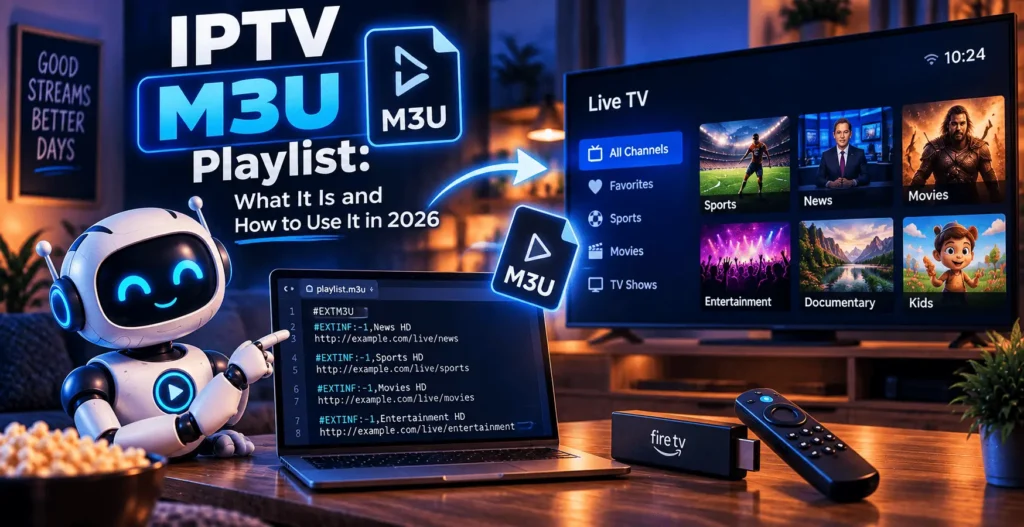
IPTV M3U Playlist: What It Is and How to Use It in 2026

If you have been researching IPTV, you have probably come across the term IPTV M3U playlist. At first, it can seem technical, especially when you see terms such as M3U URL, M3U8, IPTV player, EPG, and Xtream Codes.
The good news is that the basic idea is quite simple.
An M3U playlist is a text-based list that contains information about media streams. An IPTV player reads that information and turns it into a channel list that you can browse.
In this guide, we will look at what an IPTV M3U playlist actually is, how it works, how to add one to different devices, and what you can do when a playlist does not work as expected.
Using IPTV on a Firestick? Our Firestick guide covers compatible apps, setup steps, and other things worth checking before you start streaming.
Read the Firestick Guide →| Attribute | Details |
|---|---|
| Topic | IPTV M3U Playlist |
| Level | Beginner |
| Devices Covered | Firestick, PC, Smart TV, Phone & compatible IPTV players |
| What You Need | An M3U file or M3U URL, a compatible IPTV player, and a stable internet connection |
In This Guide
What Is an IPTV M3U Playlist?
An IPTV M3U playlist is a text file containing a list of streaming addresses and information associated with those streams.
The file normally uses an .m3u or .m3u8 extension. Depending on the source, it may contain information such as channel names, categories, logos, and electronic program guide data.
A simplified example looks like this:
#EXTM3U
#EXTINF:-1 group-title="News",Example News
https://example.com/stream/news
The first line identifies the playlist format. The following lines provide information about a particular stream and its address.
When you import the file into a compatible IPTV application, the application reads those entries and organizes them into a usable interface.
This is an important distinction: M3U is a format, not an IPTV service.
The playlist itself does not provide television content. It contains references to streams, while the actual streams come from the source behind those URLs.
For more information about the M3U format itself, you can refer to the M3U reference on Wikipedia.
How Does an IPTV M3U Playlist Work?
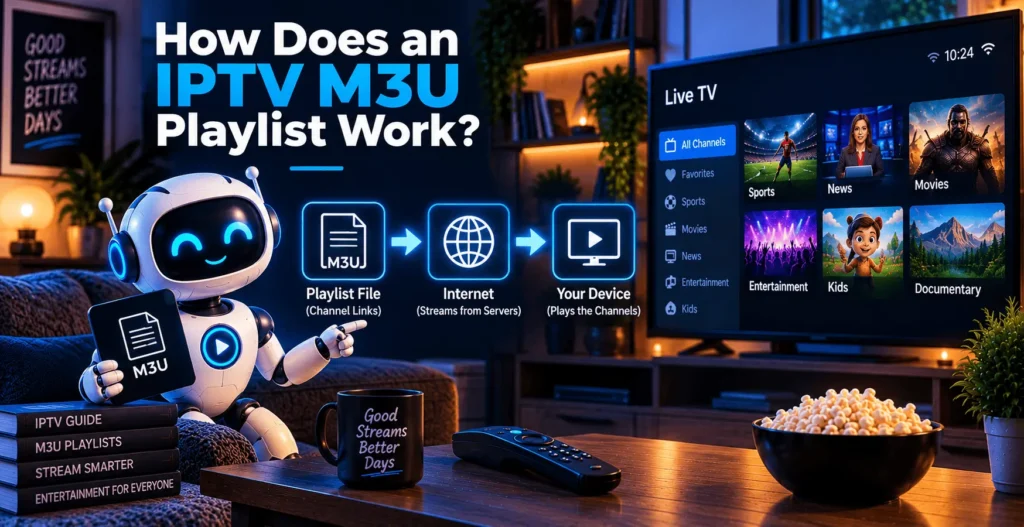
The process is fairly straightforward.
You receive either an M3U file or an M3U URL from a source. You then add it to an IPTV player that supports the format.
The player reads the information and creates a channel list.
For example, a playlist might contain different groups such as:
- News
- Sports
- Entertainment
- Movies
- Kids
- International channels
Instead of opening every stream individually, the player presents the entries in a single interface.
Some playlists also include metadata. This can tell the application what a channel should be called, which category it belongs to, or which logo should be displayed.
The exact information available depends on how the playlist was created.
This is why two M3U IPTV playlists can look very different even though they use the same basic format.
M3U File vs. M3U URL
There are two common ways to receive a playlist: as a file or as a URL.
M3U File
An M3U file is stored directly on your device.
You might receive a file and save it to your computer, phone, or another compatible device. Your IPTV player can then import that local file.
This option is useful when you want to keep a copy of the playlist locally.
M3U URL
An M3U URL is an online address pointing to a playlist.
Instead of downloading the file manually, you paste the address into your IPTV application. The application retrieves the playlist and loads the available entries.
This can be more convenient when the source updates the playlist regularly.
However, an online playlist can also stop working if the URL changes, the source becomes unavailable, or individual streams are removed.
So having an M3U URL does not necessarily mean that every channel will always be available.
How to Get a Free IPTV M3U Playlist
One of the most common searches around this topic is free IPTV M3U playlist.
There are legitimate free playlists and publicly available streams, but you should always pay attention to the source and the rights associated with the content.
A playlist being advertised as “free” does not automatically mean that every stream inside it is authorized.
Looking for a free IPTV M3U playlist? Contact us on WhatsApp and we can help you with the available playlist and setup.
Get Free IPTV M3U Playlist →Before using any playlist, it is worth checking where the streams originate and whether you are allowed to access and redistribute them.
How to Use an IPTV M3U Playlist
The exact instructions vary between applications, but the general process is similar.
First, make sure you have a compatible player and a valid playlist source.
Then:
- Open your IPTV player.
- Find the option to add a playlist.
- Choose M3U URL or local M3U file.
- Enter the URL or select your file.
- Save the playlist.
- Wait for the player to process the channel list.
Once everything loads, you should normally see the available categories and channels inside the application.
If you are using a URL and nothing happens, check that the address has been copied correctly. A single missing character can prevent the application from accessing the source.
How to Use an IPTV M3U Playlist on Firestick
Firestick users generally need an IPTV player capable of reading M3U playlists.
The exact interface depends on the application, but the process usually involves opening the playlist section and entering the M3U URL.
A typical setup looks like this:
- Install a compatible IPTV player.
- Open the application.
- Select the option to add a playlist.
- Choose M3U URL.
- Enter your playlist address.
- Save it and wait for the content to load.
The Firestick does not generate the playlist itself. It simply runs the IPTV player that accesses the source.
If you are comparing different applications for Amazon’s streaming device, our IPTV apps for Firestick guid can help you understand the available player options and their differences.
For the best experience, also make sure your Firestick has a stable internet connection. A playlist can load correctly while individual streams still buffer because of network or source-related issues.
How to Use an IPTV M3U Playlist on PC
A PC gives you several ways to test a playlist.
One popular option is VLC Media Player. VLC can open supported playlist files and network streams.
The general process is:
- Open VLC.
- Select the appropriate media or network-stream option.
- Enter the M3U URL or open the local file.
- Let VLC process the playlist.
- Select the stream you want to play.
You can get VLC from the official VideoLAN website.
Testing an M3U playlist on a computer can also be useful when troubleshooting. If it works correctly on your PC but not on your television or Firestick, the issue may be related to the IPTV application or device rather than the source itself.
IPTV M3U Playlist vs. Xtream Codes
M3U and Xtream Codes are two different ways IPTV services can provide access information to compatible applications.
With an M3U playlist, the application receives a list of stream URLs and related information.
Xtream Codes normally uses account credentials that an IPTV application can use to organize live TV, movies, series, and other available sections.
The better option depends on the application you are using and the features provided by the source.
An M3U IPTV playlist can be useful when you want a format supported by many different players. Xtream Codes can be more convenient when your application provides a dedicated interface for live TV, VOD, and series.
If you want to understand the second method in more detail, you can read our guide about Xtream IPTV.
Common M3U Playlist Problems
Even when you have a valid IPTV M3U playlist, problems can sometimes occur.
Here are some of the most common ones.
The M3U URL Does Not Load
Start by checking the URL.
Make sure there are no spaces, missing characters, or line breaks. If possible, copy the address again directly from the original source.
You should also check your internet connection.
If the URL still does not load, the source itself may temporarily be unavailable.
The Playlist Loads but Channels Do Not Play
This usually means that the application can read the playlist but cannot access one or more streams.
The problem can come from the stream source, network connection, player compatibility, or expired access.
If only a few channels are affected, the problem may be limited to those streams.
Some Channels Are Missing
An IPTV M3U playlist can change over time.
Channels can be removed, renamed, reorganized, or replaced. If your source provides an updated version, refreshing the playlist may solve the problem.
This is also why a channel count alone is not a good way to judge a playlist.
EPG Is Not Showing
EPG information may be provided separately from the playlist.
If your channels appear correctly but the program guide is empty, check whether your source provides EPG data and whether your IPTV application supports it.
Can You Edit an M3U Playlist?
Yes, if you have a local M3U file, you can normally open it using a text editor.
You can remove entries you do not need, change certain display information, or reorganize sections.
However, changing the playlist does not create new streams.
For example, if you accidentally change a stream URL, that entry may stop working.
It is therefore a good idea to keep an original backup before editing a large file.
If you are working with an online M3U URL that you do not control, you generally cannot modify the original source directly.
Is an IPTV M3U Playlist Legal?
The M3U format itself is not illegal. It is simply a way of organizing media-stream information.
The important question is what content the playlist points to and whether that content is authorized.
A playlist containing legitimate, authorized streams is different from one distributing copyrighted content without permission.
For that reason, users should consider the source of the streams rather than the playlist format itself.
If you create or distribute playlists, make sure the content you provide is properly authorized for that use.
What Should You Check Before Using a Playlist?
Before adding an IPTV M3U playlist to your application, take a few minutes to check the basics.
| What to Check | What It Means |
|---|---|
| Source | Know where the streams come from before using the playlist. |
| Compatibility | Make sure your IPTV player supports M3U or M3U8. |
| URL | Check that the playlist URL is complete and accessible. |
| EPG | Check whether compatible EPG data is available if you want program information. |
| Device | Confirm that the player works on your Firestick, TV, phone, computer, or other device. |
| Updates | Check whether the playlist is regularly updated. |
| Channel Quality | A larger channel count does not automatically mean a better playlist; organization, availability, and accessibility matter more. |
A playlist with thousands of entries is not automatically better than a smaller one. What matters more is whether the streams you actually want are available, organized properly, and accessible.
Frequently Asked Questions
What is an IPTV M3U playlist?
An IPTV M3U playlist is a text-based list containing stream addresses and, depending on the source, additional information such as channel names, groups, logos, and EPG data.
How do I get an IPTV M3U playlist?
You can obtain one from an authorized streaming source that provides its content through M3U. You can also create your own playlist when you have appropriate stream URLs.
What is a free IPTV M3U playlist?
A free IPTV M3U playlist is available without a subscription charge. However, you should still verify that the streams included in the playlist are authorized.
What is the difference between M3U and M3U8 ?
Both formats are closely related. M3U8 commonly refers to an M3U playlist encoded using UTF-8, making it suitable for text containing international characters.
Can I use an IPTV M3U playlist on Firestick?
Yes. You need an IPTV application that supports M3U playlists. Once installed, you can normally add the playlist through its M3U URL or playlist-import option.
Can I use an IPTV M3U playlist with VLC?
Yes. VLC supports compatible playlist and network-stream formats and can be useful for testing an M3U source on a computer.
Why is my IPTV M3U playlist not working?
Check the URL, internet connection, player compatibility, and source availability. If only specific channels fail, the issue may be with those individual streams.
Is M3U better than Xtream Codes?
Neither is automatically better. They provide information to IPTV applications in different ways. Your choice depends on the player, source, and features you need.
Can an IPTV M3U playlist contain thousands of channels?
maybe yes, a playlist can contain a large number of entries. However, the number of entries does not necessarily indicate quality. Reliable and relevant streams are more useful than a large number of unavailable ones.
Final Thoughts
An IPTV M3U playlist is simply a practical way of organizing streaming information so that a compatible player can display it in an easy-to-use format.
Once you understand the difference between the playlist, the IPTV player, and the actual content source, IPTV setup becomes much less confusing.
Whether you are using an M3U file or an M3U URL on Firestick, PC, or another compatible device, the basic idea remains the same: add the source to a suitable player and let the application organize the available streams.
The most important part is choosing a trustworthy source, checking compatibility, and making sure the content you access is properly authorized.