How to Install Smart IPTV on Firestick (2026 Guide)

Smart IPTV on Firestick is not in the Amazon Appstore, and it is not free. Those two facts catch out most people, and neither is mentioned until you are already halfway through the setup. The app costs a one-time activation fee, and that activation is tied to the individual device you install it on.
None of that makes it a bad choice. It does mean the install has one extra step that other players do not, and it is worth understanding before you pay rather than afterwards.
This guide covers the whole Smart IPTV on Firestick setup: sideloading, the MAC address step, activation, uploading your playlist, and what to do when the channels do not appear.
| Attribute | Details |
|---|---|
| Topic | Installing Smart IPTV (SIPTV) on a Fire TV Stick |
| Level | Beginner — no technical knowledge needed |
| Devices Covered | Firestick Lite, 3rd gen, 4K, 4K Max, Fire TV Cube |
| What You Need | An active IPTV subscription with an M3U URL |
In This Guide
What Smart IPTV on Firestick actually does
Smart IPTV on Firestick, also written SIPTV, is a player. It carries no channels, no films and no guide data of its own.
What it does is take a playlist you supply and turn it into something you can navigate with a remote. You give it an M3U URL from your provider, it pulls the channel list, and it fetches the program guide automatically where the provider supplies one.
People install it expecting television and get an empty screen. That is the app working correctly. It has nothing to show until you feed it a subscription.
Two things separate it from most alternatives. It runs on a wider range of hardware than usual, including several Smart TV platforms that will not accept an APK at all. And it charges a small one-time fee instead of a subscription, which suits people who dislike recurring payments.
Before you install Smart IPTV on Firestick
Three things, and the third is the one nobody warns you about.
Your pre-install checklist
- Have your M3U URL ready. Smart IPTV works from a playlist link, so you need the one your provider sent you.
- Check your speed at Speedtest, in the evening rather than midday. 15 Mbps carries HD comfortably, 25 Mbps and up for 4K.
- Expect to pay a one-time activation fee after the free trial ends. It is small, around six dollars at the time of writing, but it exists.
Activation is tied to your device’s MAC address, not to an account. If you replace the Firestick, or reset it in a way that changes the address, the licence does not travel with you. You pay again for the new device. That is fine if you keep hardware for years, and irritating if you swap sticks often.
Step 1: Allow installs Smart IPTV on Firestick from unknown sources
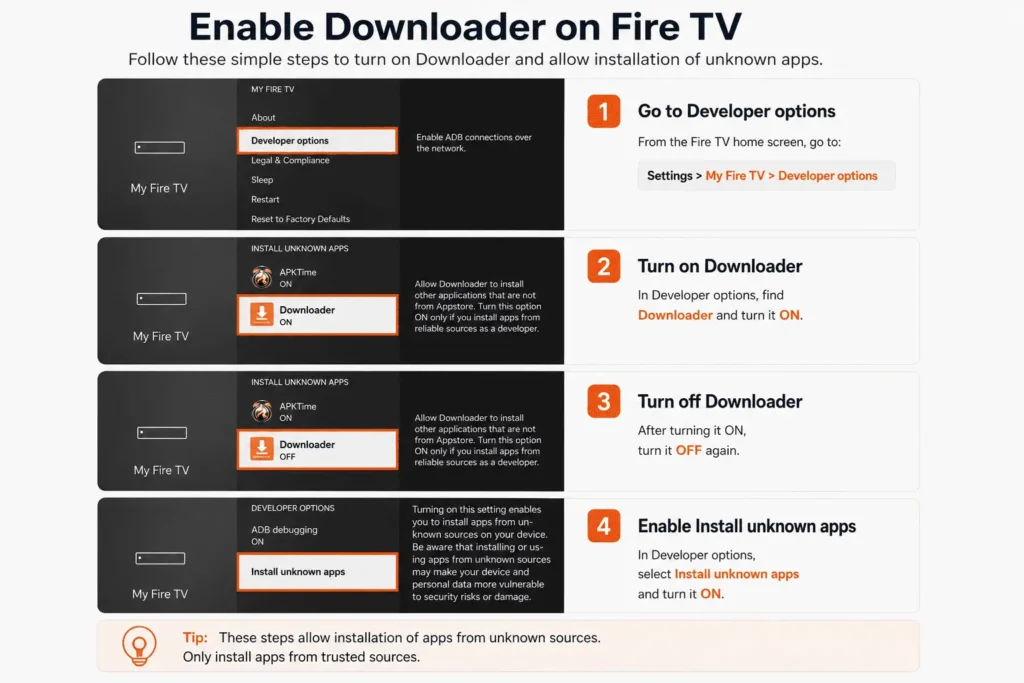
Smart IPTV on Firestick is not listed in Amazon’s store, so the device has to be told it is allowed to install an app from elsewhere. This is a standard Android setting. Nothing is jailbroken, nothing is modified, and your warranty is unaffected.
Open Settings, go to My Fire TV, then Developer Options. Depending on how old your stick is you will see either Install unknown apps or Apps from Unknown Sources. Turn it on, and if you are given a list of apps, enable it specifically for Downloader.
If Developer Options is not there
On recent Fire OS versions the menu is hidden until you ask for it. Go to Settings, My Fire TV, About, then click your device name seven times in a row. A small message appears telling you that you are now a developer. Go back one level and the menu is there.
Step 2: Install Downloader
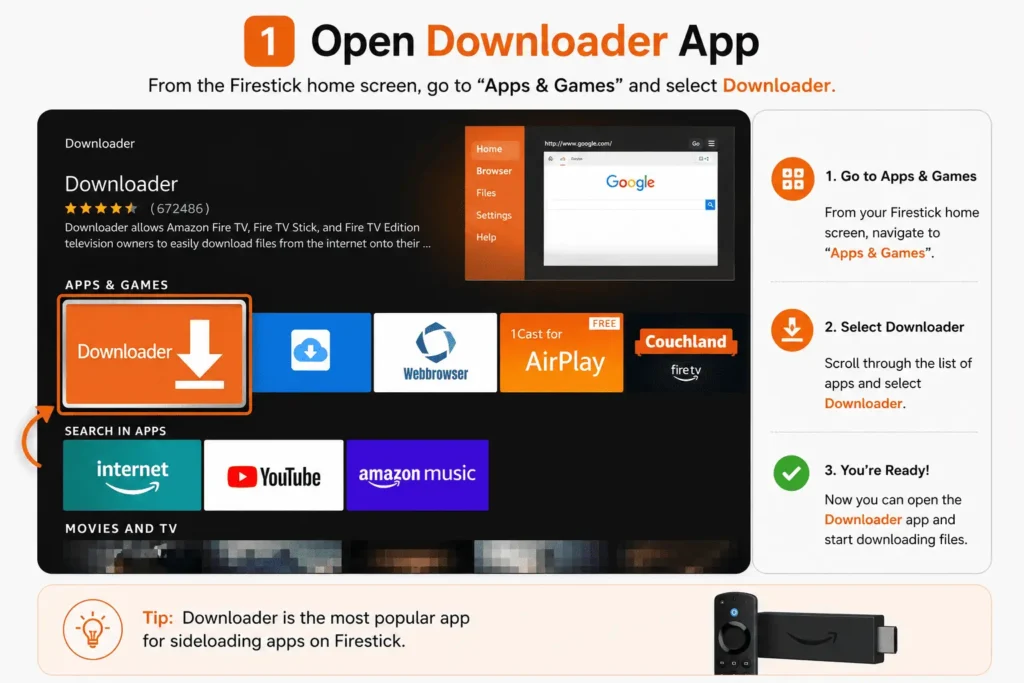
Downloader is a free app that sits in Amazon’s own store, so this part is ordinary. From the home screen use Find, then Search, and type Downloader. Install it the way you would install anything else and grant it storage permission when it asks.
The app is a stripped-back browser. It fetches a file from a web address and hands it to the installer. That is all it does, and it is the standard route for putting any app on a Fire TV device that Amazon has not listed.
Step 3: Download the Smart IPTV APK
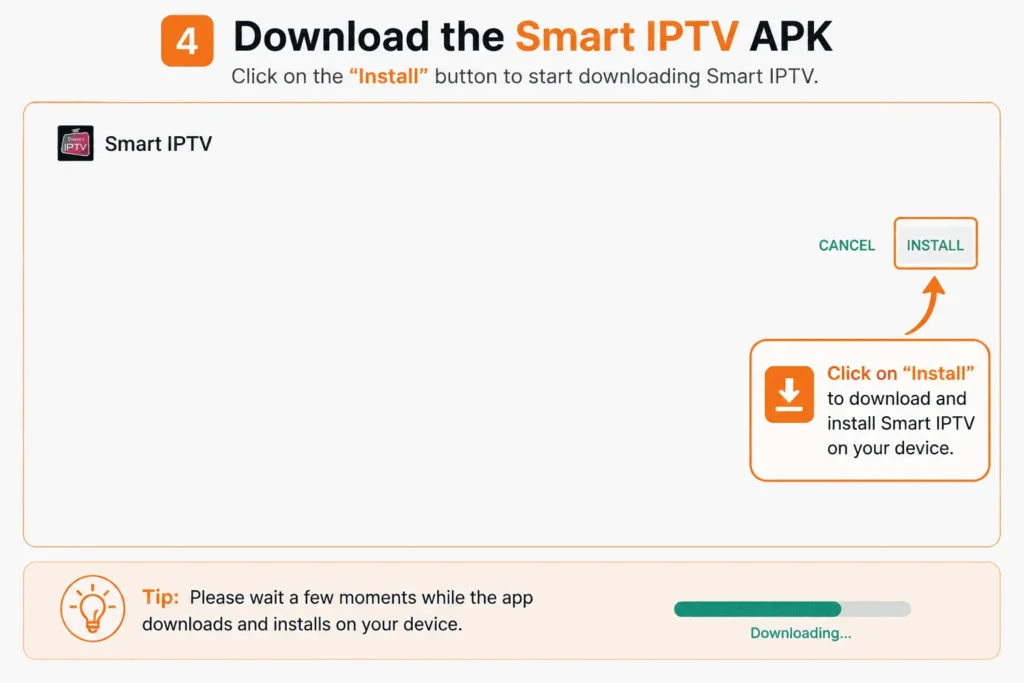
Open Downloader, type the address of the official Smart IPTV site into the URL bar, and find the Android download. Let it pull the APK file, which is small and lands quickly.
If the website is difficult to find or the direct download doesn’t work, you can use a Downloader Code instead. In the Downloader search/URL field, enter:
26604
Then select Go/OK and Downloader will take you to the Smart IPTV APK download.
Once the APK finishes downloading, select Install and confirm the installation. When it’s finished, you can delete the APK file from Downloader to free up storage.
Take it from the official siteSearch results are full of mirrors offering modified builds. Those files are repackaged by strangers and installed with full permissions on a device that lives on your home network. Use the official address or a link your provider sends you directly, and nothing else.
Step 4: Find your MAC address
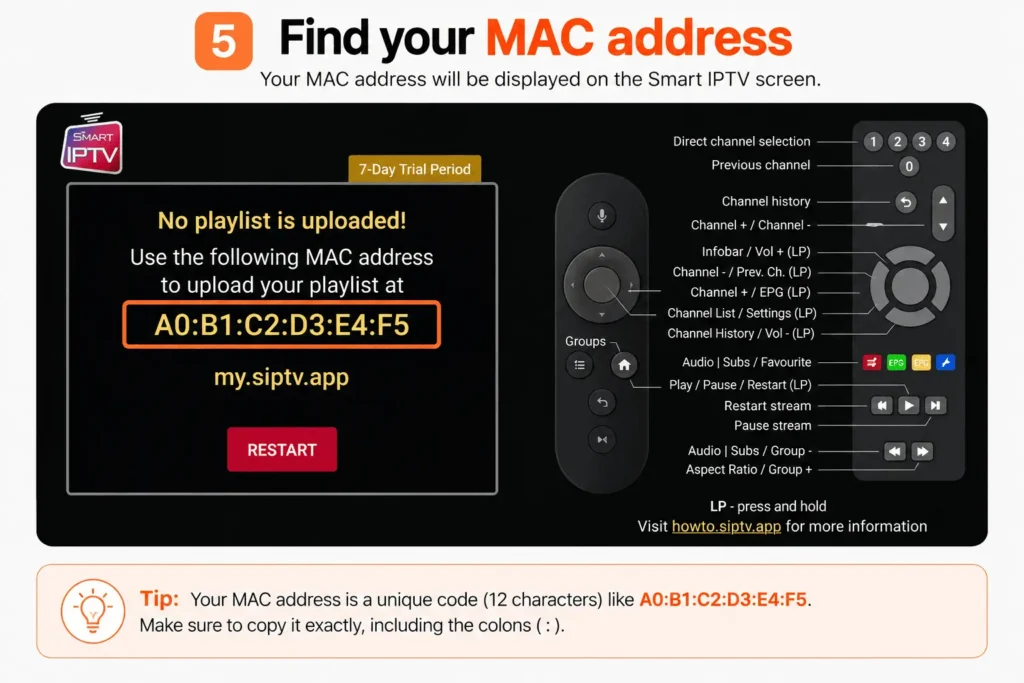
Open Smart IPTV on Firestick. Because you have not added a playlist yet, it shows a screen with a MAC address on it. That string is your device’s identifier, and it is what the activation is registered against.
Write it down exactly, including the colons. Photographing the screen with your phone is easier than copying it by hand and removes the most common source of activation failures.
Step 5: Upload your playlist and activate
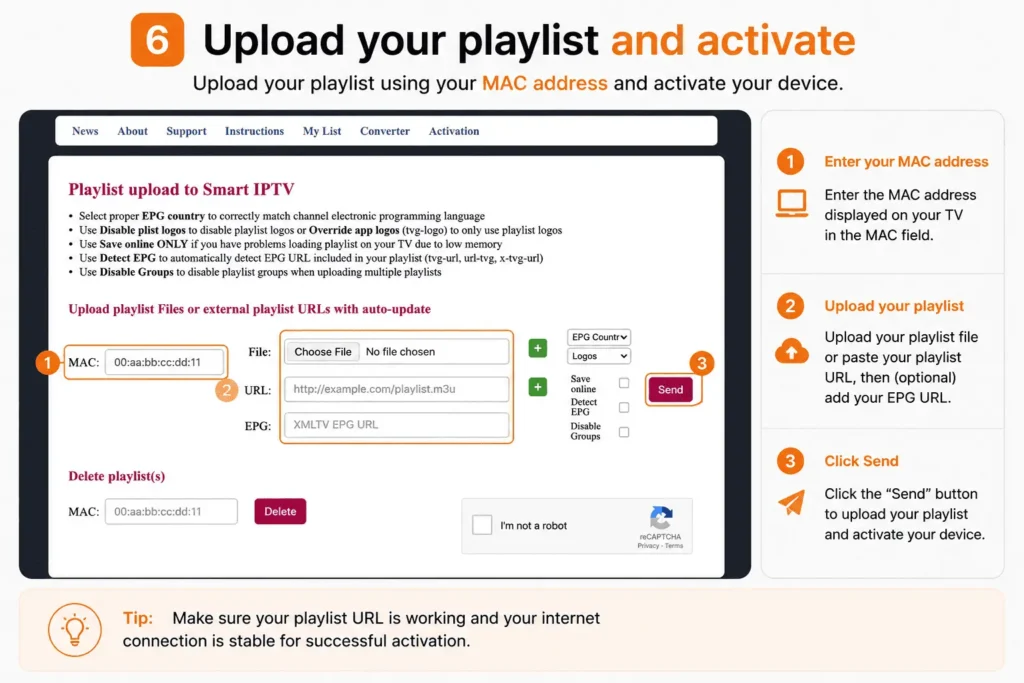
The rest happens on a phone or laptop rather than on the television, which is a relief given the amount of typing involved.
On your phone or computer
- Go to the official Smart IPTV site (my.siptv.app) and open the playlist upload page.
- Enter the MAC address from your Firestick screen.
- Paste your M3U URL into the link field. Paste it whole, exactly as your provider sent it. One missing character and it fails silently.
- Send the list, then restart Smart IPTV on the Firestick. The channels populate within a minute or two.
- The seven-day trial starts now. When it ends, the same page is where you pay the one-time activation fee.
The program guide arrives on its own where your provider supplies EPG data. If the listings are blank after a few hours, that is a provider-side setting rather than anything you did wrong.
If you have reached this point without a subscription, this is where you stop. The app is working correctly and there is simply nothing to feed it. Our guide to what to check in an IPTV service for Firestick covers the speed you actually need, what a working program guide should look like, and the five questions worth asking anyone before you hand over money.
When the channels do not appear
Four things account for almost every failed Smart IPTV on Firestick setup.
The MAC address does not match
The most common cause by a distance. One wrong character and the upload goes to a device that does not exist. Compare what you typed against the screen character by character, colons included, then send the list again.
The playlist uploaded but nothing loaded
Restart the app rather than the stick. Smart IPTV reads the list on launch, so it will not notice a new upload until it starts fresh. Force close it from Settings, Applications, Manage Installed Applications, then reopen.
The trial has quietly expired
Seven days passes faster than people expect, and the app does not make the ending obvious. If everything worked and then stopped without you changing anything, check the activation status on the official site before troubleshooting anything else.
It buffers on a connection that should cope
Move the stick onto the 5 GHz band first, since it is far less crowded than 2.4 GHz in most homes. If that does not settle it, a wired connection through Amazon’s Ethernet adapter removes the variable entirely. Watch one channel at 2pm and again at 8pm: fine at 2pm and broken at 8pm on a cable means the problem is on your provider’s servers, not your setup.
Is Smart IPTV on Firestick worth the activation fee?
Depends entirely on whether you value paying once over paying nothing.
Player Cost Tied to device? Best for Smart IPTV One-time fee Yes, by MAC Smart TVs that reject APKs IPTV Smarters Pro Free No Most first-time users TiviMate Free tier, paid premium No Daily viewers who want a better guide IBO Player Pro One-time fee Yes When other players misbehave XCIPTV Player Free / paid builds No Catch-up TV
The honest position: if this is your first IPTV player and you are running a Firestick, IPTV Smarters Pro does the same job for nothing and is not locked to your hardware. Smart IPTV earns its fee when you are setting up a Smart TV that will not accept a sideloaded APK, or when you genuinely prefer one payment and no further thought.
Our full comparison of IPTV apps for Firestick goes through all six in detail, and there is a step-by-step Smarters install guide if you decide to start with the free option instead.
Is Smart IPTV on Firestick legal?
The app is. Smart IPTV is commercial software distributed openly by its developer, and installing software on hardware you own is not against the law.
The legal question attaches to the service you connect it to, not to the player. A provider operates lawfully where it holds distribution rights for the channels it carries, and unlawfully where it does not. That varies by country and changes over time, which makes it a question about the specific provider rather than about IPTV as a category.
Before paying anyone, look for published terms, a stated refund policy, and a contact address for copyright complaints. A service with none of those has told you something. For a neutral explanation of how the delivery technology works, Wikipedia’s IPTV article is a reasonable starting point.
Frequently asked questions
Is Smart IPTV on Firestick free?
No. There is a seven-day free trial, after which the app requires a one-time activation fee of around six dollars. It is not a subscription and it does not renew, but the app is not free the way IPTV Smarters Pro is.
Why does Smart IPTV need my MAC address?
Because the licence is registered against the device rather than an account. The MAC address is how the developer identifies which hardware has been activated. It also means the app cannot be moved between devices, which is the main trade-off of the one-time payment model.
What happens if I replace my Firestick?
The activation does not transfer. A new device has a new MAC address, so it counts as a new activation and you pay again. Worth factoring in if you upgrade hardware regularly.
Does Smart IPTV on Firestick work with the 4K Max?
Yes, and on the Lite, 3rd gen, 4K and Fire TV Cube. The 4K models output 4K where the source stream supports it. The 1080p models run the app normally but cap output regardless of what the provider sends.
Do I need a subscription as well?
Yes. Smart IPTV carries no channels of its own. Without an M3U URL from a provider it opens to an empty screen. The activation fee pays for the player, not for anything to watch.
Do I need a VPN?
Not for the app to work. A VPN helps on university, office and hotel networks that block streaming ports, and some people run one permanently for privacy. On an ordinary home connection you can skip it.
Wrapping up
Installing Smart IPTV on Firestick is five steps, and only two of them are unusual: the sideload and the MAC address registration. Get the address right and the rest takes about ten minutes.
Whether to pay the activation fee is a separate question from whether Smart IPTV on Firestick installs cleanly. If you have a Smart TV in the house that refuses APKs, Smart IPTV earns its money. If it is only ever going on a Firestick, the free players do the same job without tying anything to your hardware.
Either way, the player is one half of the setup. The subscription behind it decides whether any of it holds up on a busy evening, and no app rescues a weak line. Our full install guide covers the other devices if you are setting up more than one screen.